

NotePix automatically uploads images, screenshots, and other assets from your Obsidian vault to a designated GitHub repository. It then replaces local links with either a GitHub-hosted URL or a secure internal private link, with smart Auto/Public/Private mode handling.
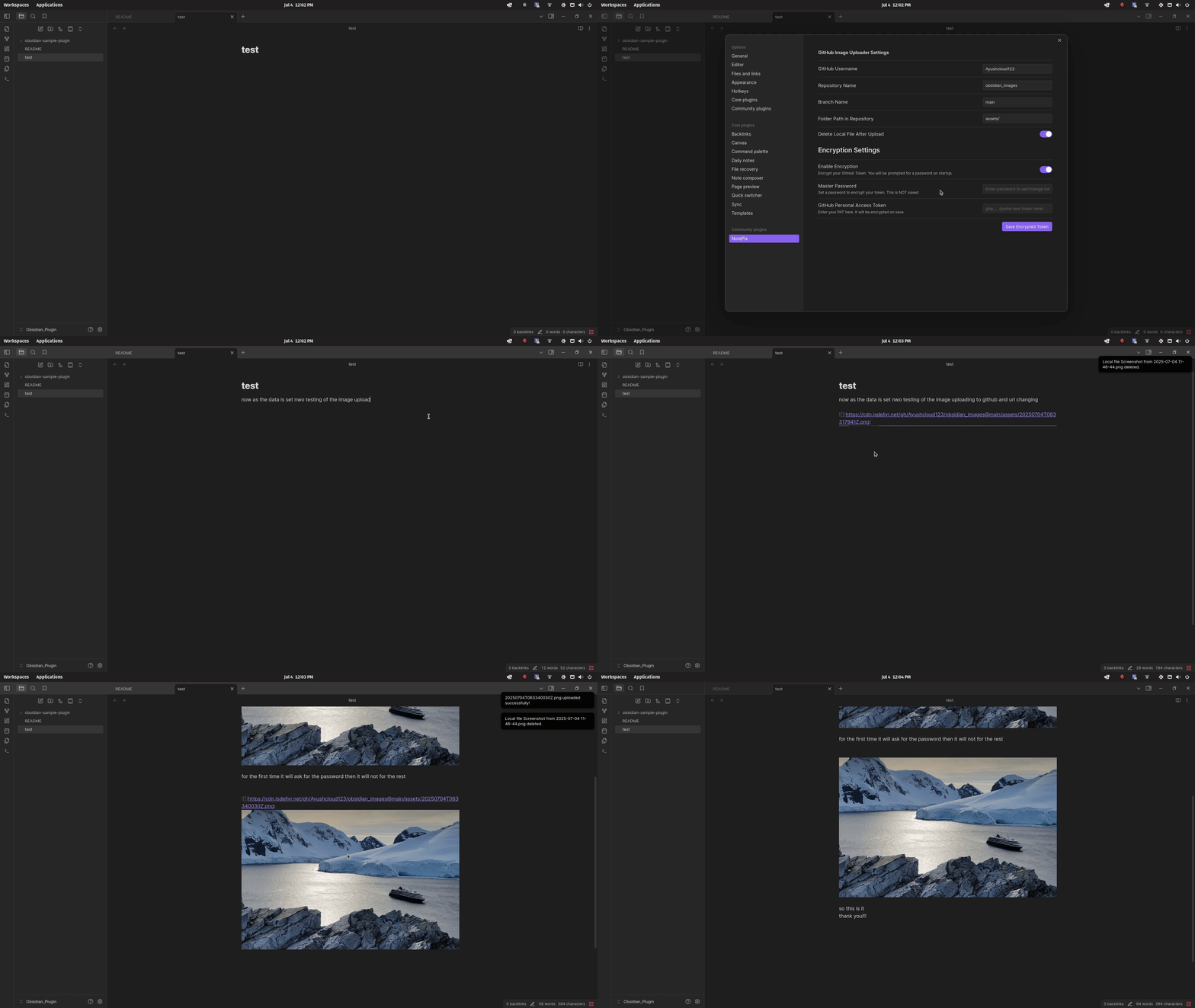
- Seamless Automation: Just paste or drag an image into a note. NotePix handles the rest.
- Upload Existing Images: Already have local images in a note? Run "Upload all local images in current note" to upload every embedded local image at once and swap the links — no need to re-paste. Uploads all first, then rewrites the note in a single pass (no clobbered links), and works even if you switch notes mid-upload.
- Private Images in Edit Mode: Private-repo images now render in Live Preview (edit mode), not just Reading View — fetched in-memory through the authenticated API, no temporary files on disk.
- Delete From GitHub + Note: Right-click an image (in the editor or on the rendered image) to delete it from GitHub and remove its link — with a multi-note safety guard that warns if the image is used elsewhere and lets you choose skip, this note only, or everywhere.
- Multi-Select Delete: Run "Delete images in current note (multi-select)" to tick several images from a checklist and delete them together, with the same multi-note guard.
- Find Orphaned Images: Run "Find orphaned images on GitHub" to review images in your repo that no note or canvas references anymore, then delete the ones you choose (report-only — never auto-deletes).
- Right-Click Copy: On any NotePix image, right-click to Copy image (the actual picture — works for private and public) or Copy URL (shown for public/CDN images only).
- jsDelivr CDN (Optional): For public repos, optionally serve images via the fast jsDelivr CDN. Auto-disabled for private repos, with commands to convert a note's links between raw and CDN.
- Note-Path Storage (Optional): Optionally store uploads in repo folders that mirror the note's vault path, instead of one global folder.
- Heading-Based Filenames (Optional): Optionally name uploads after the note (and heading), e.g.
MyNote-1.png/MyNote-Setup-1.png, instead of a timestamp. - Private Repository Support: Securely store your images in a private GitHub repository. NotePix fetches and displays them on-the-fly in Reading View and Live Preview.
- Repo Mode Intelligence: Use Auto (Recommended) to detect repo privacy and choose the correct link format automatically.
- Mismatch Prompt (3 Options): If your repo is private but notes contain public raw links, NotePix prompts: Use Auto Mode, Switch to Private, or Keep Public.
- Private Raw-Link Fallback: Existing
raw.githubusercontent.comlinks from any repository under your configured GitHub user can still render in preview. - Self-Describing Private Links: New private links include repo context (
owner/repo/branch/path) so they remain resolvable even if you change repository settings later. - Smart Hover Detection: Password prompts only appear in main document views. Hover previews and page previews work seamlessly without interrupting your workflow.
- Secure Token Storage: Your GitHub Personal Access Token (PAT) is never stored in plain text. It is encrypted using AES-GCM, and you are prompted for a master password to decrypt it once per session.
- GitHub-Hosted Links: For public repositories, NotePix uses direct GitHub links to serve images.
- Customizable: Configure the target repository, branch, and folder path to fit your workflow.
- Clean Up: Optionally delete the local image file after a successful upload to save space.
- Mobile Compatible: Works on both Obsidian Desktop and Mobile.
- Mobile improvements (Android/iOS): Uses the Obsidian attachment folder on mobile, fixes link replacement for attachment-button screenshots, and only deletes local images after the note link has been successfully updated.
Open the Command Palette (Ctrl/Cmd + P) and search "NotePix":
| Command | What it does |
|---|---|
| Upload all local images in current note | Uploads every local image already embedded in the active note and replaces the links. |
| Delete images in current note (multi-select) | Checklist of the note's images; delete the selected ones from GitHub + note. |
| Find orphaned images on GitHub (review before deleting) | Lists repo images no note/canvas references; pick which to delete. |
| Convert image links in note to jsDelivr CDN | Rewrites the note's public image links to CDN format. |
| Convert image links in note to GitHub raw | Rewrites the note's public image links back to raw GitHub format. |
You can also right-click an image (in the editor or the rendered image) for Copy image, Copy URL (public only), and Delete image (GitHub + note).
- On upload, NotePix checks repo privacy (cached for 10 minutes).
- If repo is public → inserts
https://raw.githubusercontent.com/.... - If repo is private → inserts private internal link in v2 format, e.g.
.
- Uploads always insert raw GitHub URLs.
- If the configured repo is actually private, those URLs may fail in editor/browser contexts.
- NotePix can still render matching existing raw links from your configured GitHub user (including older links from other repos) in preview via authenticated API fetch.
- Uploads always insert private internal links.
- Private links are fetched and rendered in Reading/Preview contexts using your token.
- If repo appears private while notes contain matching raw links, NotePix can show a 3-button mismatch modal:
- Use Auto Mode
- Switch to Private
- Keep Public
- Prompt suppression is applied per repo with a cooldown window to avoid repeated interruptions.
- Private images are rendered in Reading/Preview contexts through authenticated API fetch.
- In Source/Live Preview text editing, the markdown editor itself cannot directly render authenticated private URL fetches in the same way.
If encryption is enabled, the plugin prompts for master password when token unlock is needed. After successful decrypt, the token is cached for the session.
Follow these steps to get NotePix running.
First, you need a GitHub repository to store your images. This can now be public or private.
- Go to GitHub and create a new repository.
- You can name it anything you like (e.g.,
obsidian-assets,my-notes-images). - Choose the visibility: Public or Private.
NotePix needs a token to be able to upload files to your repository.
- Go to your GitHub Settings.
- Navigate to Developer settings > Personal access tokens > Tokens (classic).
- Click "Generate new token" and select "Generate new token (classic)".
- Give the token a descriptive name (e.g.,
obsidian-notepix-token). - Set the Expiration as desired (e.g., 90 days or "No expiration").
- Under Select scopes, check the box for
repo. This is the only permission required for both public and private repos. - Click "Generate token" at the bottom.
- Immediately copy the token! You will not be able to see it again.
- Install NotePix from the Obsidian Community Plugins browser.
- Enable the plugin in your settings.
- Open the NotePix settings tab and fill in the details:
| Setting | Description | Example |
|---|---|---|
| GitHub Username | Your GitHub username (case-sensitive). | AyushParkara |
| Repository Name | The name of the repository you created in Step 1. | obsidian-assets |
| Repository Visibility | Auto (Recommended) detects privacy and picks the correct link format. Public/Private force behavior. | Auto / Public / Private |
| Branch Name | The branch to upload files to. | main or master |
| Folder Path in Repository | The directory inside your repo to store images. A / is added automatically. |
assets/ |
| Delete Local File | If enabled, the original image file is deleted from your vault after a successful upload. | true / false |
| Use jsDelivr CDN for public images | (Optional, off by default) For public repos, serve new uploads via the jsDelivr CDN. Ignored for private repos. | true / false |
| Image storage layout in repository | (Optional) Global folder stores everything in the folder path above; Mirror note path stores each note's images in a folder matching the note's location. |
Global / Mirror note path |
| Base folder for note-path layout | (Shown for Mirror note path) Repository folder under which mirrored note paths are created. | assets |
| Name images after the note / heading | (Optional, off by default) Names uploads like MyNote-1.png (or MyNote-Heading-1.png) instead of a timestamp. |
true / false |
- Toggle on "Enable Encryption".
- Enter a strong, memorable password in the "Master Password" field. This password is not saved anywhere.
- Paste the GitHub PAT you generated in Step 2 into the "GitHub Personal Access Token" field.
- Click "Save Encrypted Token". A notice will confirm it has been saved securely.
You are all set! The next time you paste an image, NotePix will handle the upload according to your settings.
New features
- Upload existing images: new command to upload every local image already embedded in a note, in one pass. Uploads all first, then rewrites the note once (no clobbered links), and targets the correct note even if you switch away mid-upload.
- Private images in Live Preview: private-repo images now render while editing (not just Reading View), fetched in-memory — no temporary files.
- Delete from GitHub + note: right-click an image (editor or rendered) to delete the file from GitHub and remove its link, with a multi-note guard (skip / this note only / everywhere).
- Multi-select delete: pick several of a note's images from a checklist and delete them together.
- Find orphaned images: review repo images no note/canvas references anymore and delete the ones you choose (report-only, never auto-deletes; scans
.mdand.canvas). - Copy image / Copy URL: right-click to copy the actual image (private or public), or the URL (public/CDN only).
- Optional jsDelivr CDN for public repos, with commands to convert a note's links between raw and CDN.
- Optional note-path storage layout and optional heading/note-based filenames.
Fixes & improvements
- Fixed GitHub delete failing with "no sha / unreadable response" by using Obsidian's
requestUrland computing the git blob SHA directly from the file bytes when needed. - Faithful filename preservation for captions and sizes (e.g.
![[img.png|200]]→), and correct handling of filenames with spaces, unicode, and parentheses via proper URL encoding. - All new options are off by default, so existing setups behave exactly as before until you opt in.
This plugin is created by Ayush Parkara. If you find it useful and want to show your appreciation, you can support me here:

This plugin is released under the MIT License.