
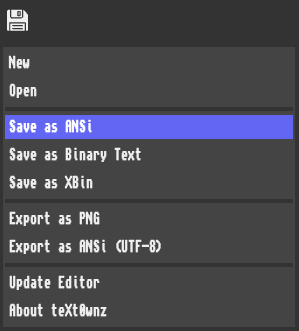
File operations allowing you to create, open, and save artwork in multiple file types.
Supported Formats:
- ANSI (
.ans) - Classic ANSI text art format - NFO (
.nfo) - Warez scene release format - Binary Text (
.bin) - Raw binary (legacy scene format) - XBin (
.xb) - Extended Binary format with embedded fonts and palettes - UTF-8 (
.utf8.ans) - Export as text with shell color escape codes - Plain Text (
.txt) - Export as text only - PNG - Export as image
Note
See xb-format.md for technical details on the XBin format.
Import/Export Operations:
- Load via File → Open or drag-and-drop
- Automatic format detection
- Export options for all supported types and PNG
Auto Save/Restore:
- Artwork auto-saved to IndexedDB in browser
- Session restoration on new launch
- Canvas data stored/compressed efficiently for offline use
- Auto-save triggers on canvas changes without UI blocking
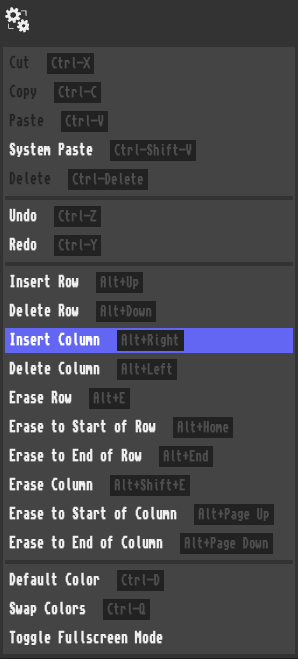
Edit operations to quickly add/remove rows/columns, erase sections, and more.
Features:
- Clipboard Operations - Cut, copy, paste (both app and system clipboard)
- Undo/Redo - Full history support with keyboard shortcuts
- Canvas Manipulation - Insert/delete rows and columns
- Erase Tools - Clear rows, columns, or specific sections
- Color Operations - Default color, swap colors
- Fullscreen Mode - Toggle fullscreen for distraction-free editing
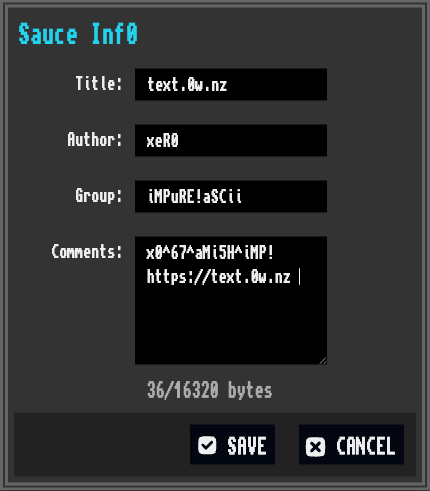
"Sauce" is a special metadata format created by the ANSI text art scene. It allows for embedding title, author, release group, and comments into files.
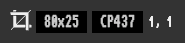
This section of the UI displays the current canvas size, font, and cursor position. Clicking the Resolution or Font Name will open their respective options menus.
Status Elements:
- Resolution - Current canvas size (columns × rows)
- Font Name - Active font (click to change)
- Cursor Position - Current cell coordinates (column, row)
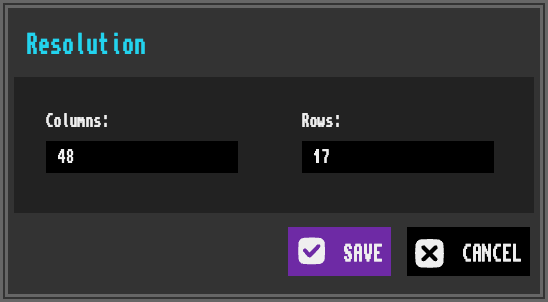
Text art resolution is calculated by columns and rows. 80 × 25 is the default size of dial-up BBS screens, and is still a very common size for text art to this day. But feel free to make it as large as you like, even use the 80th column *gasps!*
Common Sizes:
- 80 × 25 - Classic BBS terminal size
- 80 × 50 - Extended terminal mode
- 132 × 60 - Wide format for detailed work
Note
See building-and-developing.md for technical details on canvas rendering.

The color system uses the classic 16-color ANSI palette with optional iCE colors for extended backgrounds.
- Foreground and background color selection
- Click to swap foreground/background colors
- Keyboard shortcut:
qto quickly swap colors - Keyboard shortcut:
ctrl+dfor default colors
- 16-color ANSI palette (8 standard + 8 bright colors)
- Real-time color preview
- Quick color swap (
qkey) - Double click to change color (XBIN files only)
Color Support:
- Standard ANSI 16 colors
- iCE colors (extended 16 background colors)
- Custom palettes in XBIN format
Note
See xb-format.md for information on custom palettes

Tip
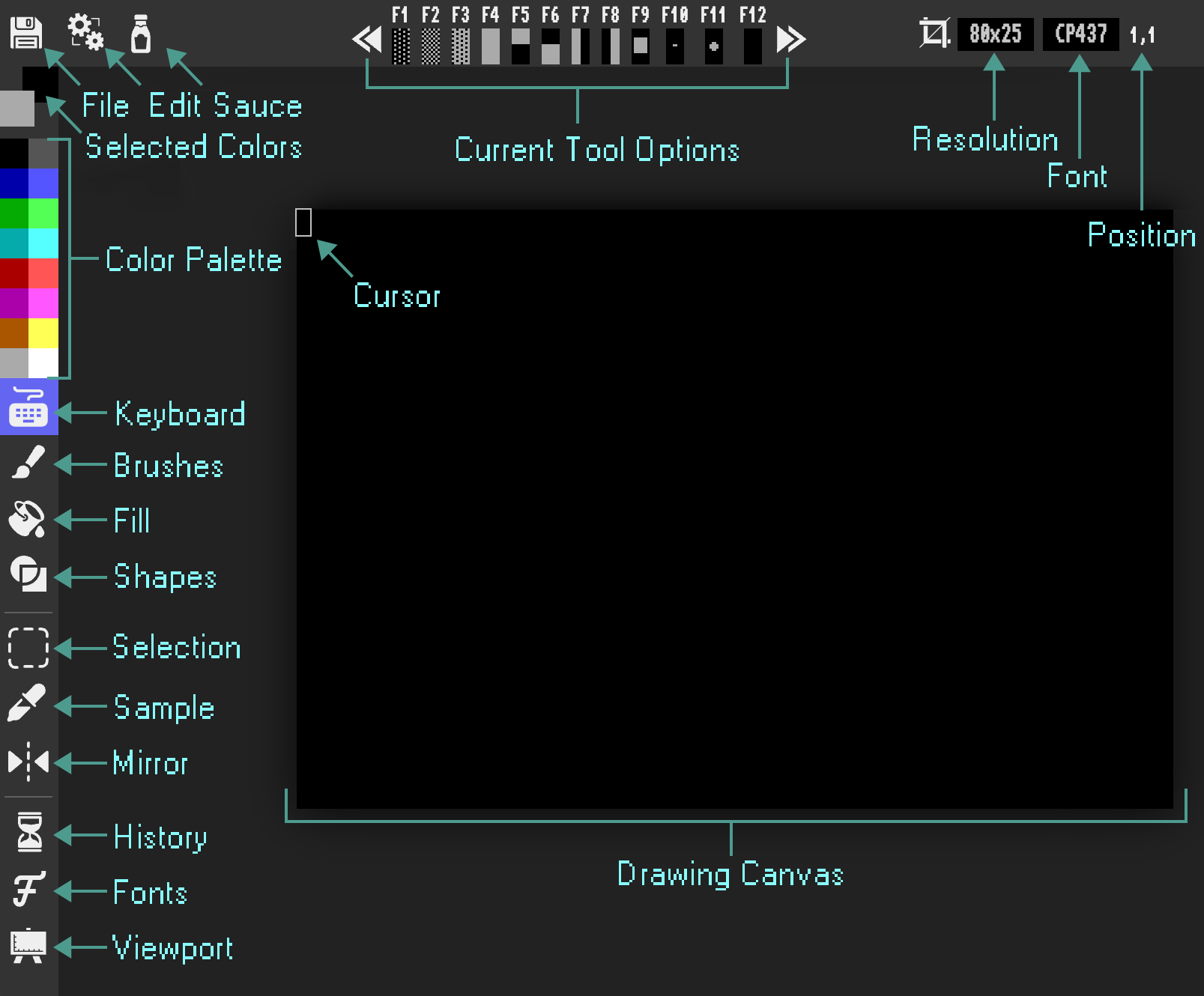
The currently selected tool will be highlighted (keyboard mode in this case)
Some tools such as "Brushes" have many options or sub-tools. Clicking the tool icon from the left menu will update (or clear) the current tool options section of the top bar.
Tip
Press escape to switch back to the previous tool
Available Tools:
- Keyboard Mode - Full text input
- Brushes - Freehand, shading, character, and attribute brushes
- Fill - Flood fill colors and patterns
- Shapes - Lines, rectangles, circles, and ellipses
- Selection - Select, move, copy, and transform areas
- Sample - Pick colors and characters from canvas
- Mirror Mode - Symmetrical drawing
- History - Undo/redo operations
- Font Selection - Choose from many classic fonts
- Grid - Toggle alignment grid
- Light/Dark Mode - Interface theme
- Zoom - Scale the drawing canvas

Full text input with navigation controls. Type characters directly onto the canvas. Use the F-keys to insert block shading characters (░▒▓) like traditional ANSI editors.
Features:
- Direct character input
- F-key block character insertion
ctrl+[,ctrl+]to swap character sets- Traditional ANSI editor workflow
shift+arrow keysswitch to the Selection Tool

Tip
Click the F-key legend preview to insert that character to the current cell.
Navigation Shortcuts:
| Key | Action |
|---|---|
arrow keys |
Move cursor |
shift arrow keys |
Switch to selection tool |
home |
To start of row |
end |
To end of row |
page up/page down |
Move by viewport screen |
cmd left/cmd right |
Start/end of row |
tab/backspace |
Insert/delete left tab |
enter |
New line |
Page Up and Page Down automatically calculate movement based on the current viewport height and font size, allowing you to navigate large canvases one screen at a time without losing your bearings.
In Keyboard Mode:
- Canvas cursor moves by one full screen height
- Viewport automatically scrolls to keep cursor visible
In Selection Tool:
- Selection moves by one full screen height in default mode
- In move mode, selected content moves by one full screen height
- Viewport automatically scrolls to keep selection visible
This makes navigation much faster and more intuitive on large text art pieces.


Multiple brush types for different drawing techniques. Each brush has unique properties and use cases.
Draw with blocks for pixel-like drawing. Hold Shift for straight lines. Think of this tool as your pen.
Features:
- Pixel-precise drawing with half-block characters
- Hold
shiftfor straight line constraints - Ideal for detailed artwork
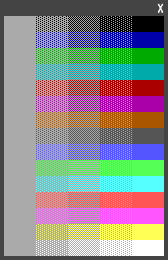
Draw with shading blocks (░▒▓). 'Reduce mode' when holding Shift. Ideal for gradients and texture effects. Includes a block color gradient picker. Click the X to close it, or drag it around using the top area.
Features:
- Multiple shading levels: light (
░), medium (▒), dark (▓), full (█) - Reduce mode with Shift key
- Draggable gradient picker panel
- Press the 'X' to hide, reopens on tool reselection
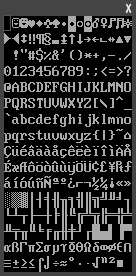
Draw with any character from the font. Includes a character picker for selecting specific glyphs.
Features:
- Access to full character set
- Interactive character picker
- Draw with any glyph from the active font
- Press the 'X' to hide, reopens on tool reselection
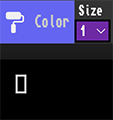
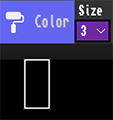
Paint/recolor the foreground and background colors of the selected cell. Use the size dropdown to adjust the brush size to paint larger/smaller areas.
Brush size x1 (default)
Brush size x3
Features:
- Change colors without affecting characters
- Preserve existing artwork structure
- Quick color corrections
- Repaint large areas faster
Note
See fonts.md for available characters in different fonts and project-structure.md for technical brush implementation.

Flood fill for colors and text patterns with smart attribute handling to preserve existing artwork while changing colors.
Features:
- Flood fill connected regions
- Smart attribute detection
- Color-only fill option to preserve characters


Draw geometric shapes with automatic color conflict resolution and real-time preview.
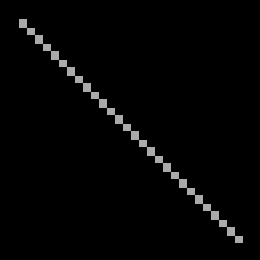
Draw straight lines with automatic color conflict resolution. Great for creating borders and geometric designs.
Features:
- Click and drag to draw lines
- Automatic color mixing for intersections
- Perfect for borders and diagrams
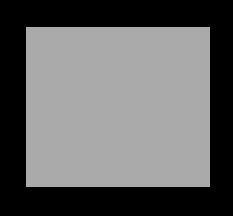
Draw rectangles, circles, and ellipses. Choose between outline or filled shapes with real-time preview.
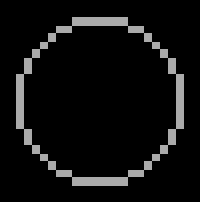
Features:
- Rectangles and squares
- Circles and ellipses
- Outline or filled modes
- Real-time preview while dragging


Select rectangular canvas areas for manipulation, copying, or transformation. Position updates live in status bar.
Note
Single clicks move the cursor without creating a selection. Drag to create a selection to prevent accidental single-cell selections.
Selection Modes:
The default selection mode is white:
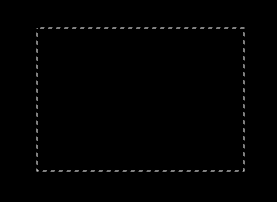
Move mode is orange (toggle with m key):
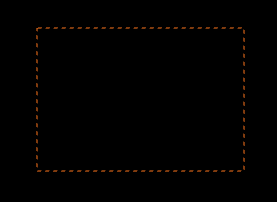
Keyboard Shortcuts:
| Key Combo | Action |
|---|---|
default mode: arrow keys |
Move selection area |
mode mode: arrow keys |
Move selection contents |
shift arrow keys |
Expand/shrink selection |
home/end |
Expand to row start/end |
page up/page down |
Move by screen height |
ctrl x |
Cut |
ctrl c |
Copy |
ctrl v |
Paste from editor clipboard |
ctrl shift v |
Paste from system clipboard |
[/] |
Flip horizontally/vertically |
m |
Toggle move mode (orange) |
Mouse/Touch:
- Click in unselected area - Create new selection
- Click and drag - Create or expand selection to different cell
- Within a selection (default mode) - Move the selection box
- Within a selection (move mode) - Move the selection and its contents

Sync the editor foreground/background color and brush tool with the selected cell. Great for matching colors and characters when working on complex artwork.
Features:
- Pick colors from existing artwork
- Copy character and color attributes
- Quick tool for color matching
Keyboard Shortcut:
alt key (while using other tools)

Horizontally mirrors any drawing tool on the opposite side of the canvas. Ideal for creating logos, symmetric patterns, and balanced compositions.
Example:
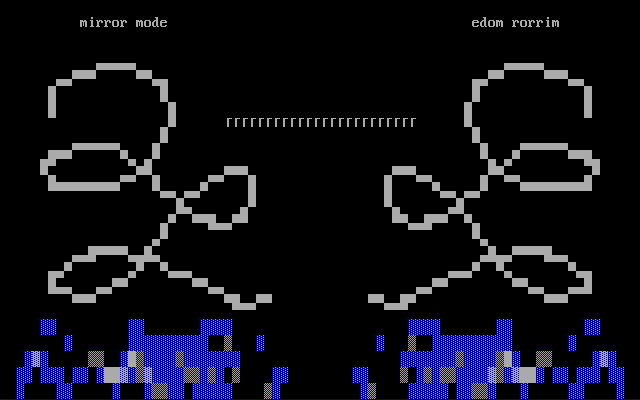
Features:
- Automatic horizontal mirroring
- Works with all drawing tools
- Perfect for creating symmetrical designs
Keyboard Shortcut:
ctrl m

Full undo/redo support for all drawing operations.
Features:
- Up to 1000 undo operations
- Works with all tools and operations
- History saved to local storage with artwork changes for session persistence.
Supported Operations:
- Drawing and erasing
- Color changes
- Selection operations
- Canvas resizing
- Font changes
Keyboard Shortcuts:
| Key Combo | Action |
|---|---|
ctrl z, cmd z, meta z |
Undo |
ctrl y, cmd y, meta y |
Redo |
Note
See architecture.md for state management implementation details.


Change the font options for your artwork. teXt0wnz supports a wide variety of classic and modern fonts.
Choose from classic ANSI fonts and modern XBIN fonts. See fonts.md for a complete list of available fonts with previews.
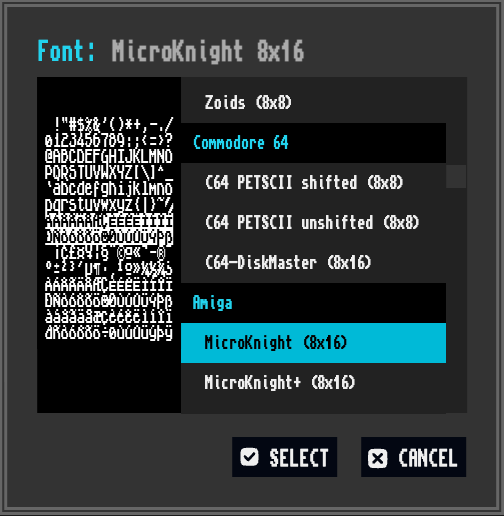
Font Categories:
- IBM PC - Classic DOS code pages (CP437, CP850, etc.)
- Modern - Contemporary XBIN fonts (Topaz437, SES-SYM variants, etc.)
- Commodore 64 - PETSCII fonts (Shifted, UnShifted, and DiskMaster)
- Amiga - MicroKnight, mO'sOul, P0t-N0oDLE, & Topaz variants
- International - Arabic, Cyrillic, Greek, Hebrew, and more
Extended 16-color background palette (normally only 8 are available in ANSI). Required for certain artwork styles.
Important
iCE colors use the blink bit for additional background colors, disabling blinking text.
A special "extra pixel" wide mode for letter spacing.
Use Cases:
- Wider character spacing
- Better readability for some fonts
- Specific aesthetic requirements
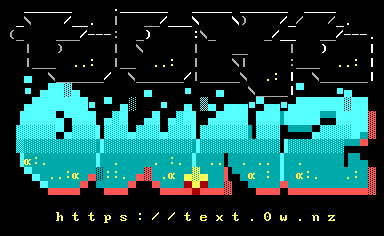
Font: XBIN topaz_437
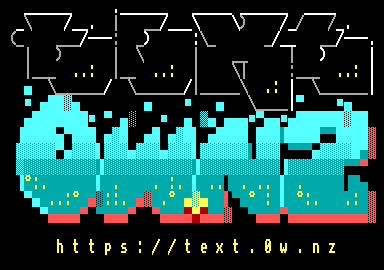
Font: XBIN topaz_437 with 9pt
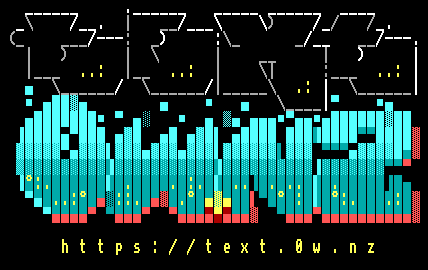
Font: IBM Code Page 437
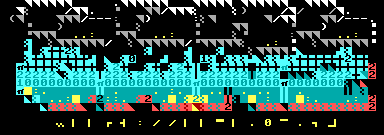
Font: Commodore C64 Petscii
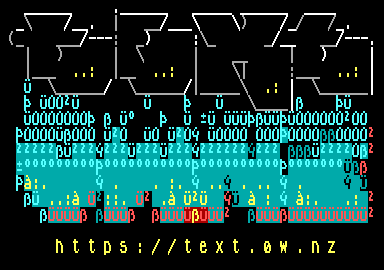
Font: Amiga MicroKnight
Note
See fonts.md for the complete font catalog and xb-format.md for embedding custom fonts in XBin files.


Customize your editing experience with these interface options.
Visually scale the drawing canvas from 0.5-4x size, while keeping the interface elements unchanged.
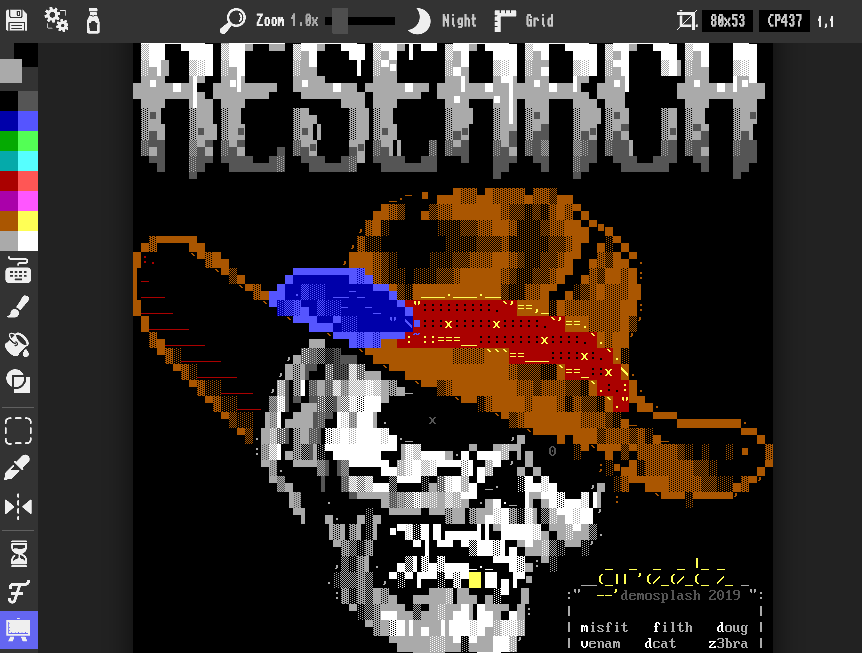
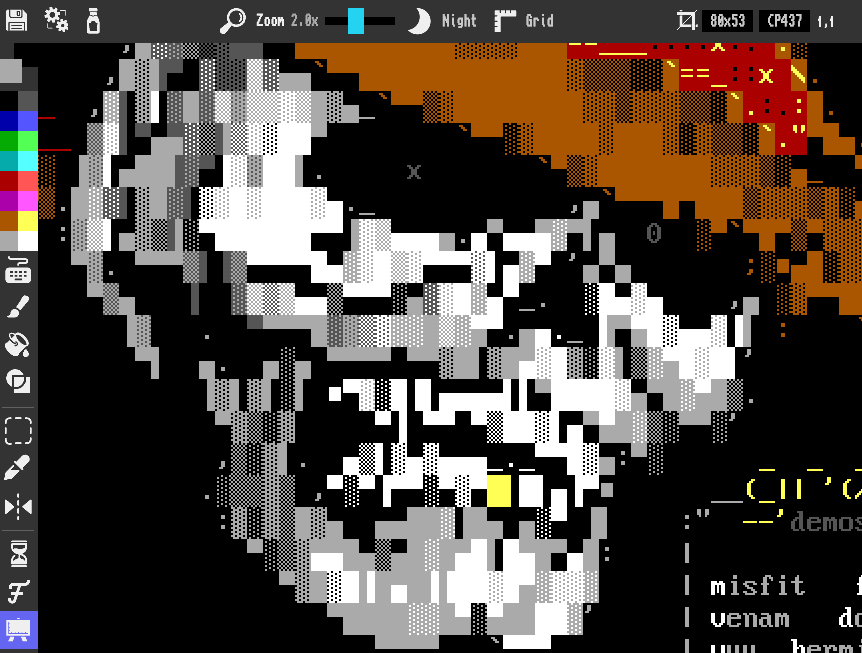
- Use the slider to adjust the zoom
- Provides half size steps for greater control
- Select whole number scaling for pixel perfect rendering
- Preference saved in local storage
Keyboard Shortcuts:
| Key Combo | Action |
|---|---|
ctrl + |
Zoom canvas in |
ctrl - |
Zoom canvas out |
Warning
Scaling events take a moment to complete. The entire font and canvas need to be recalculated and redrawn.

Toggles between light and night mode interface colors. Choose the theme that works best for your environment and personal preference.
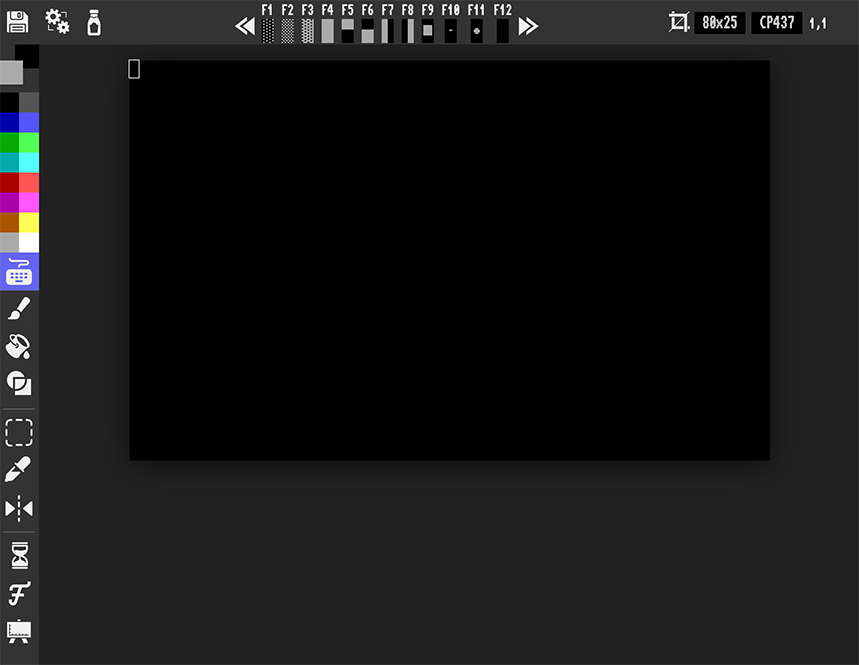
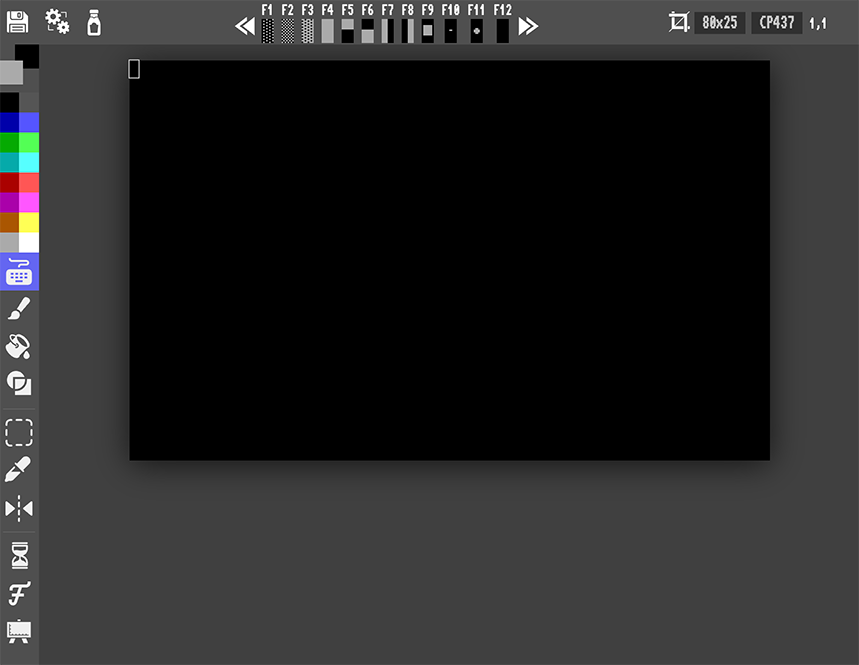
Features:
- Night mode for low-light environments
- Light mode for bright environments
- Preference saved in local storage
- Instant switching without reload
- Slick visual transition

Toggles the visual grid. Useful for creating precise layouts, aligning elements, and maintaining consistent spacing in your artwork.
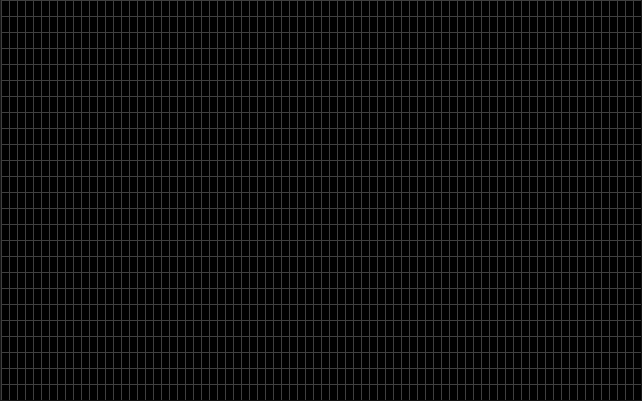
Features:
- Visual cell boundaries
- Helps with alignment and spacing
- Non-destructive overlay (doesn't affect artwork)
Keyboard Shortcut:
ctrl g
Note
See privacy.md for information on local storage usage.
Tip
- Start with Keyboard Mode for layout and text
- Use Grid (G key) for alignment
- Switch to Freestyle for shading and pixel art
- Use Character Brush for textures and patterns
- Fill Tool for large color blocks
- Selection Tool for moving and copying sections
- Save often (Ctrl+S)
- Use F-keys for quick access to block characters
- Alt+Click to sample colors from artwork
- Undo/Redo freely (up to 1000 operations stored)
The editor contains a built in library of 20+ hand-collected ANSI drawing tutorials spanning decades of the scene. Each entry showcases unique techniques, styles, and the vision of a talented artist.
The tutorials themselves are just normal ANSI art files. Viewing a tutorial simply opens the file in the editor. Allowing you to test the techniques and play around with the samples in their native context.

- Click file menu floppy disk icon
- Click the "Tutorials" item
- Click on a preview to load the tutorial into the editor!

Note
See tutorials.md for a complete listing.
The chat window is available when connected to a collaboration server. It provides real-time communication with other users and displays server activity logs.
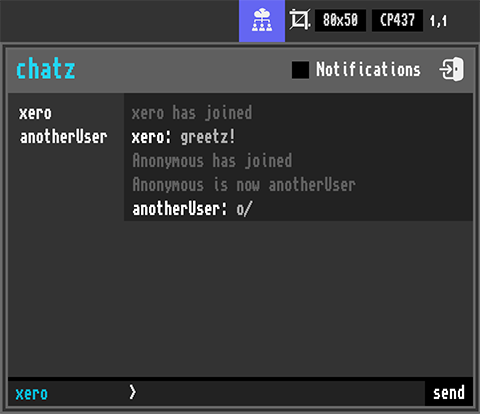
- Repositionable - Click and drag the chat header to move the window anywhere on screen
- User Messages - Send and receive chat messages with other collaborators
- Server Logs - Join/leave/nickname change events displayed as styled log messages
- Notifications - Optional desktop notifications for new messages and events
- User List - See all currently connected users (left hand column)
- Close Button - Click the X button in the header to close the chat window
- Type your message in the input field and press Enter or click "send"
- Change your username by editing the handle field
- Enable/disable notifications with the checkbox in the header
- Drag the header to reposition the window (position does not persist between sessions)
Note
See collaboration-server.md for details on setting up and using the collaboration server.
Main Tool Shortcuts:
| Key | Tool/Action |
|---|---|
k |
Keyboard Mode |
f |
Freestyle (half-block) |
b |
Character Brush |
n |
Fill Tool |
a |
Attribute Brush |
g |
Grid Toggle |
i |
iCE Colors Toggle |
m |
Mirror Mode |
Color & Character:
| Key/Combo | Action |
|---|---|
d |
Reset colors to default |
q |
Swap foreground/background |
0–7 |
Select basic color |
F1–F12 |
Insert block/character (see below) |
File & Canvas:
| Combo | Action |
|---|---|
ctrl z / ctrl y |
Undo / Redo |
ctrl x/ctrl c/ctrl v/ctrl shift v |
Cut/Copy/Paste/SystemPaste |
ctrl delete |
Delete selection |
Navigation (Keyboard Mode):
| Key | Action |
|---|---|
arrow keys |
Move cursor |
home |
Start of current row |
end |
End of current row |
page up / page down |
Move by viewport screen |
cmd left / cmd right |
Start/end of row |
Advanced Editing (alt + key):
| Combo | Action |
|---|---|
alt up / alt down |
Insert/Delete row |
alt right / alt left |
Insert/Delete column |
alt e / alt shift e |
Erase row/col |
alt home / alt end |
Erase to start/end |
alt page up / alt page down |
Erase to top/bottom |
Selection Operations:
| Key | Action |
|---|---|
[ / ] |
Flip selection |
m |
Move mode |
Selection Navigation:
| Key | Action |
|---|---|
arrow keys |
Move selection area by one cell |
shift arrow keys |
Expand/shrink selection |
home / end |
Expand selection to row start/end |
page up / page down |
Move selection by screen height |
cmd left / cmd right |
Expand selection to row start/end |
In Move Mode:
arrow keys,page up,page downmove selected content
Function Keys (F1–F12): Quick character insert from CP437 font (blocks, symbols, shapes, and more).
| Key | Character | Description |
|---|---|---|
f1 |
░ |
Light shade block |
f2 |
▒ |
Medium shade block |
f3 |
▓ |
Dark shade block |
f4 |
█ |
Full block |
f5 |
▀ |
Upper half block |
f6 |
▄ |
Lower half block |
f7 |
▌ |
Left half block |
f8 |
▐ |
Right half block |
f9 |
■ |
Small solid square |
f10 |
○ |
Circle |
f11 |
• |
Bullet |
f12 |
NULL |
Blank/transparent |
Cycling character sets:
- Use toolbar or shortcuts (
ctrl [,ctrl ]) to cycle predefined sets (blocks, box-drawing, symbols, accents, etc.).
- left click: Draw, place cursor
- click & Drag: Draw/Shape or select region
- shift click: Straight line with freehand
- alt click: Sample colors (any tool)
- right click: Context menu
- architecture.md - System architecture and design