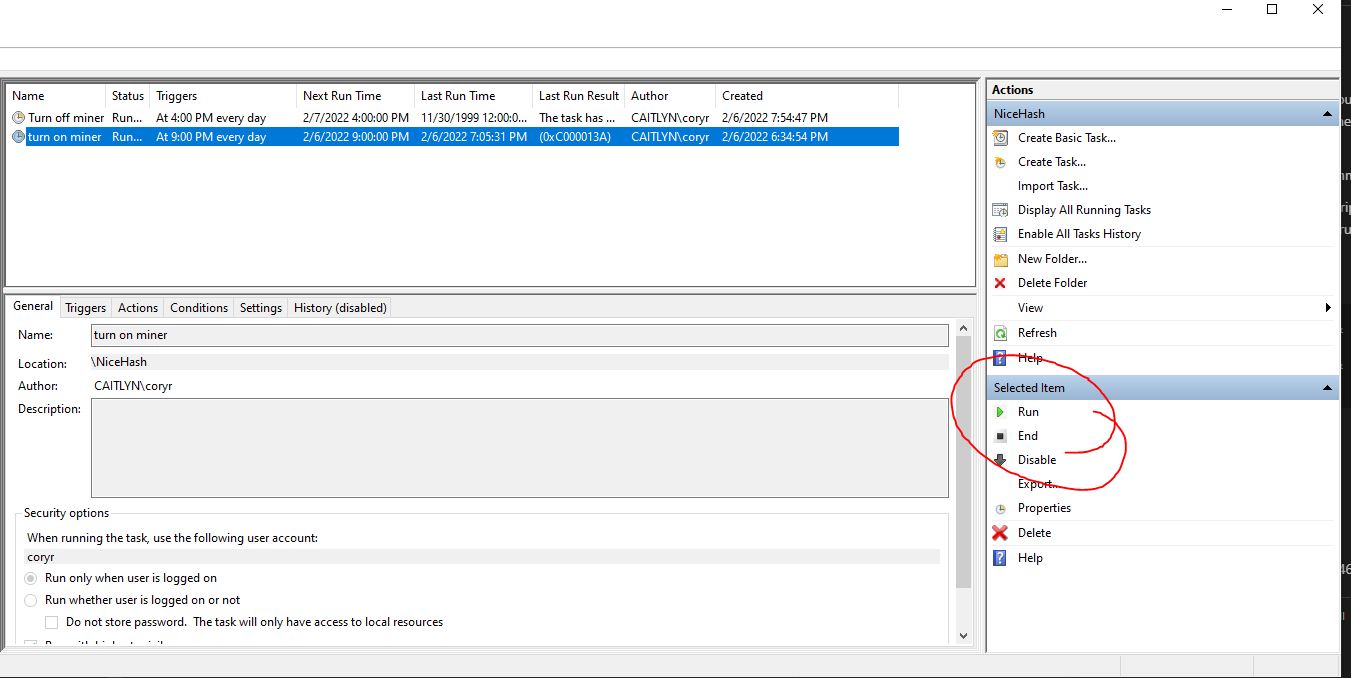
Scheduling for Windows is easy once you understand what's required.
- For me it is
C:\Users\coryr\OneDrive\Documents\GitHub\NiceHash-Mining-Scheduler- Keep this location for later
- Find where python is located
- Open cmd and type
where python - For me it was
C:\Users\coryr\AppData\Local\Programs\Python\Python39\python.exe 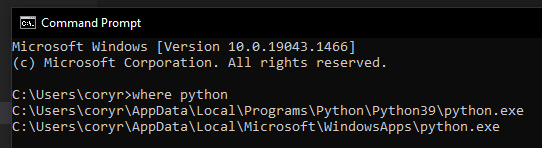
- A shortcut to the above location is
%LocalAppData%\Programs\Python\Python39\python.exe
- Open cmd and type
- Open
windows_start_mining.batandwindows_stop_mining.batand replace the first quoted part with your python location
- Hit Windows key and type
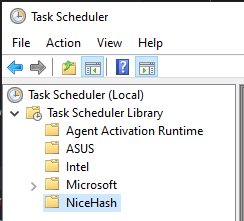
Task scheduler - On the left side, expand the
Task Scheduler Library - Create a new folder called Nicehash
- Inside this folder we're going to create 2 basic tasks
- Also, to help with troubleshooting,
Enable All Tasks Historyin the Actions menu \n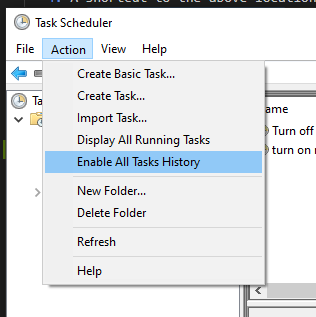
-
Right click on the folder you created, click
Create Basic Task -
Name is
Turn on minerclick next \n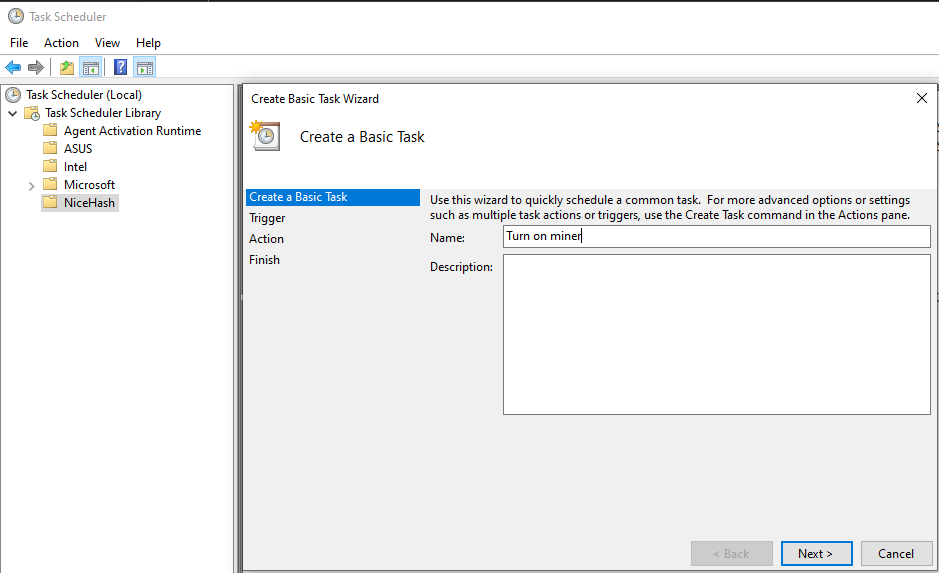
-
Set schedule to Daily - click next \n
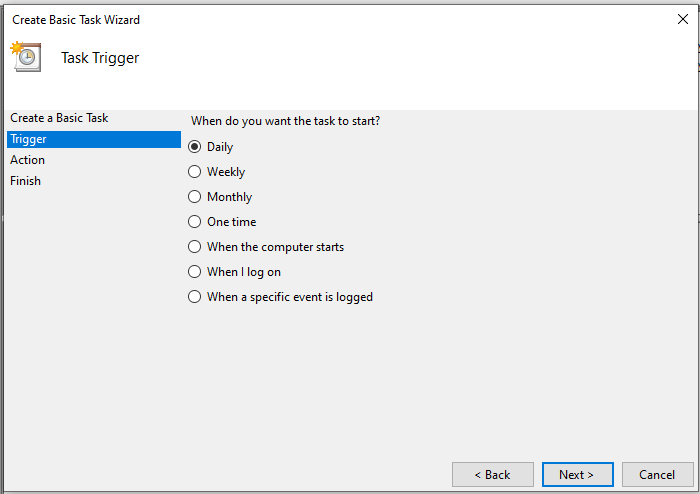
-
Set the miner to turn on at your desired time (mine is 9pm) - click next \n
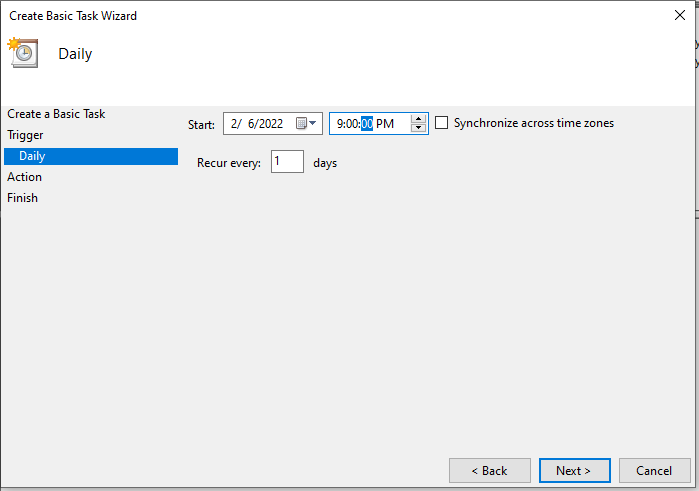
-
Select
Start a programas the desiredAction- click next \n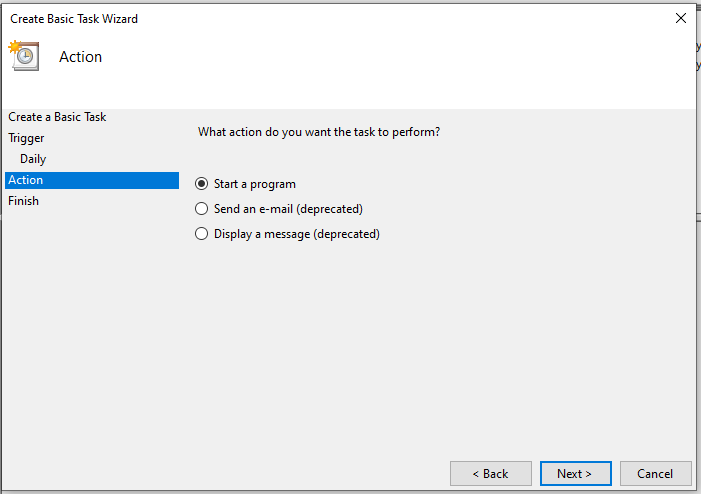
-
Under
Start a programbrowse for the scriptwindows_start_mining.bat- For
Start in (optional)add theroot pathyou found fromstep Aclick next \n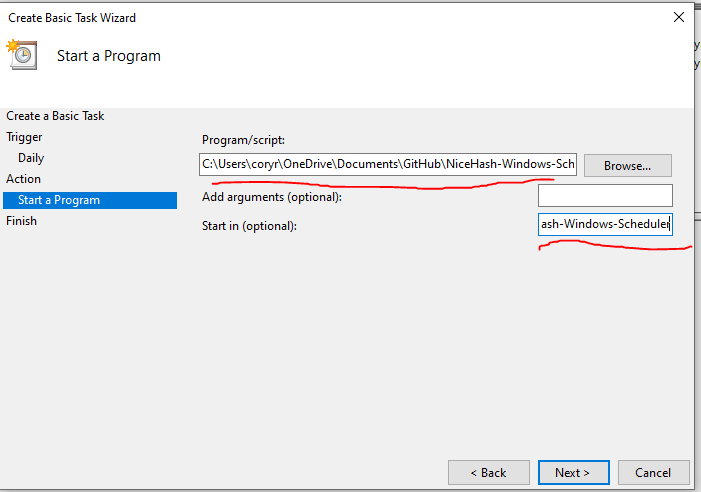
- For
-
Click finish
- Right click on the folder you created, click
Create Basic Task - Name is
Turn off minerclick next - Set schedule to Daily - click next
- Set the miner to turn off at your desired time (mine is 4pm) - click next
- Select
Start a programas the desiredAction- click next - Under
Start a programbrowse for the scriptwindows_stop_mining.bat- For
Start in (optional)add theroot pathyou found fromstep Aclick next
- For
- Click finish
Congratulations, your miner(s) should be scheduled.
- Select your script from the Task Scheduler
- Click
runon the right side \n