A lightweight Windows tray application that connects to Home Assistant via WebSocket and displays the live status of a door lock directly in the system tray.
The tray icon updates automatically when the lock state changes, showing a locked or unlocked icon and tooltip without requiring any visible window.
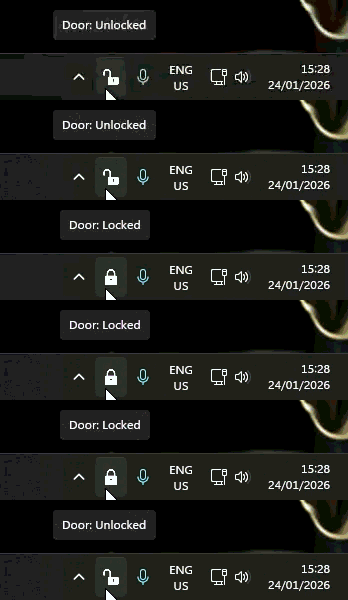
- Runs silently in the Windows system tray
- Connects to Home Assistant using the official WebSocket API
- Subscribes to state changes for a single lock entity
- Updates the tray icon and tooltip in real time
- Automatically reconnects if Home Assistant restarts or the connection drops
- .NET WPF application
- WinForms NotifyIcon for tray integration
- Home Assistant WebSocket API
- No third party tray libraries required
- Windows
- .NET 8 or later (Windows target)
- Home Assistant instance reachable over WebSocket
- A Home Assistant long lived access token
- A lock entity in Home Assistant (for example lock.front_door)
-
App.xaml / App.xaml.cs
Application entry point and tray lifecycle -
HaWsClient.cs
Home Assistant WebSocket client handling auth, subscriptions, and reconnect logic -
Assets
Contains locked.ico and unlocked.ico tray icons
You must update the following values in App.xaml.cs before running the app:
- Home Assistant WebSocket URL
- Long lived access token
- Lock entity ID
Example configuration snippet:
var haUrl = "wss://homeassistant.example.com:8123/api/websocket";
var token = "YOUR_LONG_LIVED_ACCESS_TOKEN";
var lockEntityId = "lock.front_door";
If you are running Home Assistant locally without TLS, use ws:// instead of wss://.
Two icon files are required:
- Assets/locked.ico
- Assets/unlocked.ico
Each icon file must have the following properties set in Visual Studio:
- Build Action: Content
- Copy to Output Directory: Copy if newer
At runtime the app loads icons from:
bin/Debug/netX.X-windows/Assets/
- The app starts with no visible window
- A system tray icon is created using WinForms NotifyIcon
- The app connects to Home Assistant over WebSocket
- The WebSocket client authenticates using the access token
- The app subscribes to state_changed events
- When the specified lock entity changes state:
- The tray icon is updated
- The tooltip text reflects the new state
The app currently expects standard Home Assistant lock states:
- locked
- unlocked
Any other state is shown in the tooltip as is.
- Build the solution
- Run the application
- The tray icon appears immediately
- No window is shown
To exit the app:
- Right click the tray icon
- Select Exit
- Ensure the app is built as WinExe
- Ensure UseWindowsForms is enabled in the project file
- Confirm icons exist in the output Assets folder
- Verify the Assets folder exists in the project
- Ensure icons are marked as Content and copied to output
- Rebuild the solution after changing file properties
- Verify the WebSocket URL is correct
- Check whether ws:// or wss:// is required
- Ensure certificates are trusted when using wss://
- Confirm the access token is valid
- Fetch initial lock state on startup using get_states
- Left click tray icon to toggle lock or unlock
- Windows auto start support
- Toast notifications on unlock
- Support multiple locks or entities
MIT