AI assistant integration for Home Assistant via Model Context Protocol (MCP).
This add-on enables AI assistants (Claude, ChatGPT, etc.) to control your Home Assistant installation through the Model Context Protocol (MCP). It provides 86+ tools for device control, automation management, entity search, calendars, todo lists, dashboards, backup/restore, history/statistics, camera snapshots, and system queries.
Key Features:
- Zero Configuration - Automatically discovers Home Assistant connection
- Secure by Default - Auto-generated secret paths with 128-bit entropy
- Fuzzy Search - Find entities even with typos
- Deep Search - Search within automation triggers, script sequences, and helper configs
- Backup & Restore - Safe configuration management
Full features and documentation: https://github.com/homeassistant-ai/ha-mcp
-
Click the button to add the repository to your Home Assistant instance:
Or manually add this repository URL in Supervisor → Add-on Store:
https://github.com/homeassistant-ai/ha-mcp -
Navigate to the add-on "Home Assistant MCP Server" from the add-on store
-
Click Install, Wait and then Start
-
Check the add-on logs for your unique MCP server URL:
🔐 MCP Server URL: http://192.168.1.100:9583/private_zctpwlX7ZkIAr7oqdfLPxw -
Configure your AI client using one of the options below

Claude Desktop requires a proxy to connect to HTTP MCP servers. Install mcp-proxy first:
# Install mcp-proxy
uv tool install mcp-proxy
# or
pipx install mcp-proxy
Then add to your Claude Desktop configuration file:
Location:
- macOS:
~/Library/Application Support/Claude/claude_desktop_config.json - Windows:
%APPDATA%\Claude\claude_desktop_config.json
Configuration:
{
  "mcpServers": {
    "home-assistant": {
      "command": "mcp-proxy",
      "args": ["--transport", "streamablehttp", "http://192.168.1.100:9583/private_zctpwlX7ZkIAr7oqdfLPxw"]
    }
  }
}
Replace the URL in args with the one from your add-on logs.
Restart Claude Desktop after saving the configuration.
How it works: mcp-proxy converts the HTTP endpoint to stdio that Claude Desktop can use.
Use the claude mcp add command:
claude mcp add-json home-assistant '{
  "url": "http://192.168.1.100:9583/private_zctpwlX7ZkIAr7oqdfLPxw",
  "type": "http"
}'
Replace the URL with the one from your add-on logs.
Restart Claude Code after adding the configuration.
For secure remote access, you have two options:
The Webhook Proxy add-on routes MCP traffic through your existing Home Assistant reverse proxy — no separate tunnel needed.
- Install the MCP Server add-on first (if not already installed — see the Installation section above)
- Install the "Webhook Proxy for HA MCP" add-on from the add-on store
- Start it and restart Home Assistant when prompted
- Copy the URL from the webhook proxy add-on logs:
MCP Server URL (remote): https://xxxxx.ui.nabu.casa/api/webhook/mcp_xxxxxxxx - Use that URL in your MCP client
Works with Nabu Casa, Cloudflare, DuckDNS, nginx, or any other reverse proxy pointing at HA.
Use the Cloudflared add-on for a dedicated tunnel:
Note: The Cloudflared add-on requires a Cloudflare account and uses named tunnels. You'll need to authenticate via the browser flow when first setting up the tunnel.
Add to Cloudflared add-on configuration:
additional_hosts:
  - hostname: ha-mcp  # Named tunnel (requires Cloudflare account)
    service: http://localhost:9583
Or with a custom domain (requires DNS setup in Cloudflare):
additional_hosts:
  - hostname: ha-mcp.yourdomain.com
service: http://localhost:9583When you first start Cloudflared:
-
Check the add-on logs for an authentication URL like:
Please open the following URL and log in with your Cloudflare account: https://xyz.cloudflare.com/argotunnel?... -
Open the URL in your browser, log in with your Cloudflare account, and select a website to authorize the tunnel
-
After authentication, the logs will show your tunnel URL:
- Named tunnel:
https://ha-mcp-<random>.cfargotunnel.com - Custom domain:
https://ha-mcp.yourdomain.com(if DNS configured)
- Named tunnel:
Combine the Cloudflare tunnel URL with your secret path:
https://ha-mcp-<random>.cfargotunnel.com/private_zctpwlX7ZkIAr7oqdfLPxw
Benefits:
- No port forwarding required
- Automatic HTTPS encryption
- Optional Cloudflare Zero Trust authentication
- Centrally managed with other Home Assistant services
Note on Quick Tunnels: True Quick Tunnel mode (temporary *.trycloudflare.com URLs without account) requires running cloudflared tunnel --url http://localhost:9583 directly via CLI or Docker, which is not supported by this add-on. The Home Assistant Cloudflared add-on uses named tunnels that require a Cloudflare account for authentication and management.
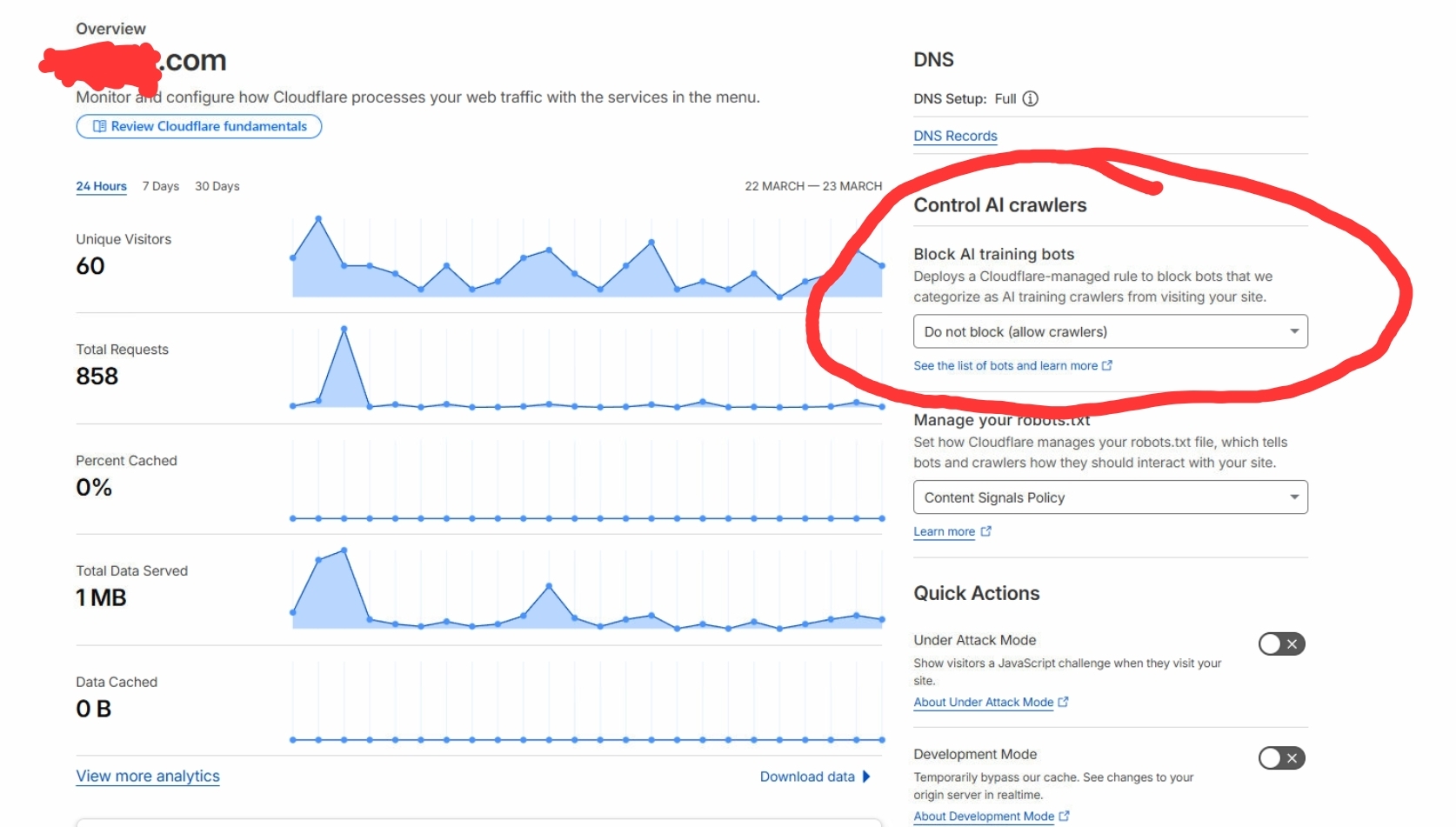
This is the most common connection issue for Cloudflare users. If your LLM client can't connect but visiting the URL in your browser works, this setting is almost certainly the cause.
Cloudflare's "Block AI training bots" feature blocks requests from AI/LLM clients by default. You must disable it:
- Log in to Cloudflare
- In the left sidebar, click Domains, then click Overview
- Click on the domain you use for connecting to Home Assistant
- On the right side of the page, find "Control AI Crawlers"
- Under "Block AI training bots", open the dropdown
- Select "do not block (allow crawlers)"
See Cloudflared add-on documentation for advanced configuration.
The add-on has minimal configuration - most settings are automatic.
Default: normal
Controls when the AI assistant suggests creating backups before operations:
normal(recommended): Before irreversible operations onlystrong: Before first modification of each sessionweak: Rarely suggests backupsauto: Intelligent detection (future enhancement)
Note: This is an advanced option. Enable "Show unused optional configuration options" in the add-on configuration UI to see it.
Default: Empty (auto-generated)
Custom secret path override. Leave empty for auto-generation (recommended).
- When empty, the add-on generates a secure 128-bit random path on first start
- The path is persisted to
/data/secret_path.txtand reused on restarts - Custom paths are useful for migration or specific security requirements
Note: This is an advanced option. Enable "Show unused optional configuration options" in the add-on configuration UI to see it.
Default: false
Replaces the full tool catalog (~86 tools, ~46K tokens) with search-based discovery (~4 proxy tools, ~5K tokens). When enabled, tools are found via ha_search_tools and executed through categorized proxies (read/write/delete).
When to enable:
- Models without native deferred tool support — this includes OpenAI-compatible local models, and also Claude Haiku which does not use Claude's built-in deferred tool loading. Haiku users will see significant token savings with this enabled.
- Models with limited context windows (≤200K) or deployments where context cost is a concern
- MCP clients that cap total tools (e.g. at 100) — reduces visible tool count to ~4
When to leave disabled (default):
- Claude Sonnet/Opus or other clients with deferred tool support — tools are loaded on demand, so the full catalog has no idle context cost
- When you need direct tool access without the search step
Requires add-on restart to take effect.
Example Configuration:
backup_hint: normal
secret_path: "" # Leave empty for auto-generationThe add-on automatically generates a unique secret path on first startup using 128-bit cryptographic entropy. This ensures:
- Each installation has a unique, unpredictable endpoint
- The secret is persisted across restarts
- No manual configuration needed
The add-on uses Home Assistant Supervisor's built-in authentication. No tokens or credentials are needed - the add-on automatically authenticates with your Home Assistant instance.
- Local network only by default - The add-on listens on port 9583
- Remote access - Use the Webhook Proxy add-on (easiest with Nabu Casa) or the Cloudflared add-on for secure HTTPS tunnels
- Never expose port 9583 directly to the internet without proper security measures
Check the logs for errors:
- Configuration validation errors
- Dependency installation failures
- Port conflicts (9583 already in use)
Solution: Review the error message and adjust configuration or free up the port.
Verify:
- Add-on is running (check status in Supervisor)
- You copied the complete URL including the secret path from logs
- Your MCP client configuration is correct
- No firewall blocking port 9583 on your local network
Solution: Restart the add-on and copy the URL from fresh logs.
Options:
- Check the add-on logs (scroll to startup messages)
- Restart the add-on (logs will show the URL again)
- Read directly from
/data/secret_path.txtusing the Terminal & SSH add-on - Generate a new secret by deleting
/data/secret_path.txtand restarting
Check add-on logs for detailed error messages. Common issues:
- Invalid entity IDs (use fuzzy search to find correct IDs)
- Missing permissions (add-on should have full access)
- Home Assistant API errors (check HA logs)
Solution: Review the specific error in logs and adjust your commands accordingly.
If the add-on is slow or unresponsive:
- Check Home Assistant system resources (CPU, memory)
- Review add-on logs for warnings
- Restart the add-on
- Consider reducing concurrent AI assistant operations
The add-on provides 86+ MCP tools for controlling Home Assistant:
ha_call_addon_api— Call an add-on's HTTP or WebSocket API.ha_get_addon— Get Home Assistant add-ons - list installed, available, or get details for one.
ha_config_list_areas— List all Home Assistant areas (rooms).ha_config_list_floors— List all Home Assistant floors.ha_config_remove_area— Delete a Home Assistant area.ha_config_remove_floor— Delete a Home Assistant floor.ha_config_set_area— Create or update a Home Assistant area (room).ha_config_set_floor— Create or update a Home Assistant floor.
ha_config_get_automation— Retrieve Home Assistant automation configuration.ha_config_remove_automation— Delete a Home Assistant automation.ha_config_set_automation— Create or update a Home Assistant automation.
ha_get_blueprint— Get blueprint information - list all blueprints or get details for a specific one.ha_import_blueprint— Import a blueprint from a URL.
ha_config_get_calendar_events— Retrieve calendar events from a calendar entity.ha_config_remove_calendar_event— Delete an event from a calendar.ha_config_set_calendar_event— Create a new event in a calendar.
ha_get_camera_image— Retrieve a snapshot image from a Home Assistant camera entity.
ha_config_delete_dashboard— Delete a storage-mode dashboard completely.ha_config_delete_dashboard_resource— Delete a dashboard resource.ha_config_get_dashboard— Get dashboard info - list all dashboards, get config, or search for cards.ha_config_list_dashboard_resources— List all Lovelace dashboard resources (custom cards, themes, CSS/JS).ha_config_set_dashboard— Create or update a Home Assistant dashboard.ha_config_set_dashboard_resource— Create or update a dashboard resource (inline code or external URL).
ha_get_device— Get device information with pagination, including Zigbee (ZHA/Z2M) and Z-Wave JS devices.ha_remove_device— Remove an orphaned device from the Home Assistant device registry.ha_update_device— Update device properties such as name, area, disabled state, or labels.
ha_get_entity— Get entity registry information for one or more entities.ha_get_entity_exposure— Get entity exposure settings - list all or get settings for a specific entity.ha_remove_entity— Remove an entity from the Home Assistant entity registry.ha_set_entity— Update entity properties in the entity registry.
ha_delete_file— Delete a file from allowed directories in the Home Assistant config.ha_list_files— List files in a directory within the Home Assistant config directory.ha_read_file— Read a file from the Home Assistant config directory.ha_write_file— Write a file to allowed directories in the Home Assistant config.
ha_config_list_groups— List all Home Assistant entity groups with their member entities.ha_config_remove_group— Remove a Home Assistant entity group.ha_config_set_group— Create or update a Home Assistant entity group.
ha_hacs_add_repository— Add a custom GitHub repository to HACS.ha_hacs_download— Download and install a HACS repository.ha_hacs_repository_info— Get detailed repository information including README and documentation.ha_hacs_search— Search HACS store for repositories, or list installed repositories.
ha_config_list_helpers— List all Home Assistant helpers of a specific type with their configurations.ha_config_remove_helper— Delete a Home Assistant helper entity.ha_config_set_helper— Create or update Home Assistant helper entities.ha_get_helper_schema— Get configuration schema for a helper type.ha_set_config_entry_helper— Create or update a Config Entry Flow helper (template, group, utility_meter, etc.).
ha_get_automation_traces— Retrieve execution traces for automations and scripts to debug issues.ha_get_history— Retrieve historical data from Home Assistant's recorder.ha_get_logs— Get Home Assistant logs from various sources.
ha_delete_config_entry— Delete config entry permanently. Requires confirm=True.ha_get_integration— Get integration (config entry) information with pagination.ha_set_integration_enabled— Enable/disable integration (config entry).
ha_config_get_category— Get category info - list all categories for a scope or get a specific one by ID.ha_config_get_label— Get label info - list all labels or get a specific one by ID.ha_config_remove_category— Delete a Home Assistant category.ha_config_remove_label— Delete a Home Assistant label.ha_config_set_category— Create or update a Home Assistant category.ha_config_set_label— Create or update a Home Assistant label.
ha_config_get_script— Retrieve Home Assistant script configuration.ha_config_remove_script— Delete a Home Assistant script.ha_config_set_script— Create or update a Home Assistant script.
ha_deep_search— Search inside automation, script, helper, and dashboard configurations — not for finding entity IDs.ha_get_overview— Get AI-friendly system overview with intelligent categorization.ha_get_state— Get current status, state, and attributes of one or more entities (lights, switches, sensors, climate, covers, locks, fans, etc.).ha_search_entities— PRIMARY tool for finding entities (lights, sensors, switches, etc.) by name, area, or domain. Use this first when looking up any entity ID.
ha_bulk_control— Control multiple devices with bulk operation support and WebSocket tracking.ha_call_service— Execute Home Assistant services to control entities and trigger automations.ha_get_operation_status— Check status of one or more device operations with real-time WebSocket verification.ha_list_services— List available Home Assistant services with optional pagination and detail control.
ha_backup_create— Create a fast Home Assistant backup (local only).ha_backup_restore— Restore Home Assistant from a backup (LAST RESORT - use with extreme caution).ha_check_config— Check Home Assistant configuration for errors.ha_config_set_yaml— Update raw YAML configuration in configuration.yaml or packages/*.yaml (LAST RESORT).ha_get_system_health— Get Home Assistant system health, including Zigbee (ZHA) and Z-Wave JS network diagnostics.ha_get_updates— Get update information - list all updates or get details for a specific one.ha_reload_core— Reload Home Assistant configuration without full restart.ha_restart— Restart Home Assistant.
ha_get_todo— Get todo lists or items - list all todo lists or get items from a specific list.ha_remove_todo_item— Remove an item from a Home Assistant todo list.ha_set_todo_item— Create or update a todo item in Home Assistant.
ha_eval_template— Evaluate Jinja2 templates using Home Assistant's template engine.ha_install_mcp_tools— Install the ha_mcp_tools custom component via HACS.ha_report_issue— Collect diagnostic information for filing issue reports or feedback.
ha_get_zone— Get zone information - list all zones or get details for a specific one.ha_remove_zone— Remove a Home Assistant zone.ha_set_zone— Create or update a Home Assistant zone.
For domain-specific Home Assistant documentation, use the ha_get_skill_home_assistant_best_practices resource.
See the main repository for detailed tool documentation and examples.
Issues and Bug Reports: https://github.com/homeassistant-ai/ha-mcp/issues
Documentation: https://github.com/homeassistant-ai/ha-mcp
Contributing: https://github.com/homeassistant-ai/ha-mcp/blob/master/CONTRIBUTING.md
This add-on is licensed under the MIT License.
See LICENSE for full license text.