Common questions and solutions for ha-mcp setup.
No. Claude Desktop works with a free Claude account. The MCP integration is available to all users, though free accounts have usage limits.
You can also use ha-mcp with other AI clients. See the Setup Wizard for 15+ supported clients.
No. The HA app is just one installation method. Most users run ha-mcp directly on their computer using uvx (recommended for Claude Desktop). The app is only needed if you want to run ha-mcp inside your Home Assistant OS environment.
| Feature | Built-in HA MCP | ha-mcp |
|---|---|---|
| Tools | ~15 basic tools | 92+ comprehensive tools |
| Focus | Device control | Full system administration |
| Automations | Limited | Create, edit, debug, trace |
| Dashboards | No | Full dashboard management |
| Cameras | No | Screenshot and analysis |
Built-in = operate devices. ha-mcp = administer your system.
Want to test before connecting to your own Home Assistant? Use our public demo:
| Setting | Value |
|---|---|
| URL | https://ha-mcp-demo-server.qc-h.net |
| Token | demo |
| Web UI | Login with mcp / mcp |
Just set HOMEASSISTANT_TOKEN to demo and ha-mcp will automatically use the demo credentials.
The demo environment resets weekly. Your changes won't persist.
The legacy ha-mcp-sse entry point (deprecated HTTP+SSE transport on port 8087)
was removed — the MCP specification deprecated the HTTP+SSE transport. Switch to
ha-mcp-web, which serves Streamable HTTP at /mcp on port 8086, and change any
SSE-style client config accordingly (Gemini CLI users: use the httpUrl key, not
url). An SSE / --transport sse client config pointed at ha-mcp-web returns
405 and won't connect.
v7.0.0 removed the Home Assistant URL field from the OAuth consent form to fix security vulnerabilities (SSRF and XSS). Set HOMEASSISTANT_URL as a server-side environment variable before starting ha-mcp. See the OAuth migration guide for instructions.
This is normal. Claude.ai shows this error during its initial connection handshake, but the server connects successfully afterward. To verify you're actually connected:
- Look for a "Configure" button on the connector — click it
- If you see tools listed, you're connected and ready to go
You can also start a new conversation and ask Claude if it can see your Home Assistant via the MCP connection — this is the easiest way to confirm it's truly connected. Checking your server logs for successful requests (HTTP 200) after the initial error also confirms the connection is working.
This is a known Claude.ai behavior that affects all MCP servers, not just ha-mcp.
If it genuinely won't connect (not just the transient handshake error above): Claude.ai connects from Anthropic's servers, so the MCP URL must be reachable from the public internet — not just your LAN. A URL that works in Claude Code or a local browser can still be unreachable for Claude.ai web. Open the URL on your phone with Wi-Fi off (cellular): if it doesn't load there, it isn't publicly reachable (DNS / port-forward / TLS / reverse-proxy) and Claude.ai can't reach it either. Also make sure you clicked Connect on the connector (and, with OAuth enabled, Allow on the consent page) — adding the connector alone does not complete the connection.
Check for a port in the URL. Your connector URL is built on your Home Assistant's own public address, which must not contain a port such as :8123 (or any other port). To check, open just that base address (e.g. https://ha.example.com, without the /api/webhook/... secret path) in a browser — it should bring up your HA login page. Remote clients cannot reach a URL that carries a port, even though it loads fine in your own browser. Home Assistant can still listen on 8123 internally, as long as a reverse proxy, tunnel, or 443 port-forward serves that hostname — just don't put the port in the URL you paste.
Tailscale Funnel: use port 443. Funnel can also serve on the alternate HTTPS ports it offers (8443, 10000), but Claude.ai's connector backend does not reliably reach non-standard ports: the connection fails identically in every auth mode, and no request from Anthropic's range (160.79.104.0/21) ever reaches the server — nothing appears in any log. Use standard port 443 instead, where the same setup connects on the first try. The official Tailscale app's built-in "Share Home Assistant with Serve or Funnel" option already exposes Home Assistant on 443, so use that hostname in the connector URL (same webhook path). See #2080.
This is normal. ha-mcp runs in stateless HTTP mode, which means each request creates and discards a temporary session. The Terminating session: None log message is the MCP SDK reporting this routine cleanup — the connection stays active.
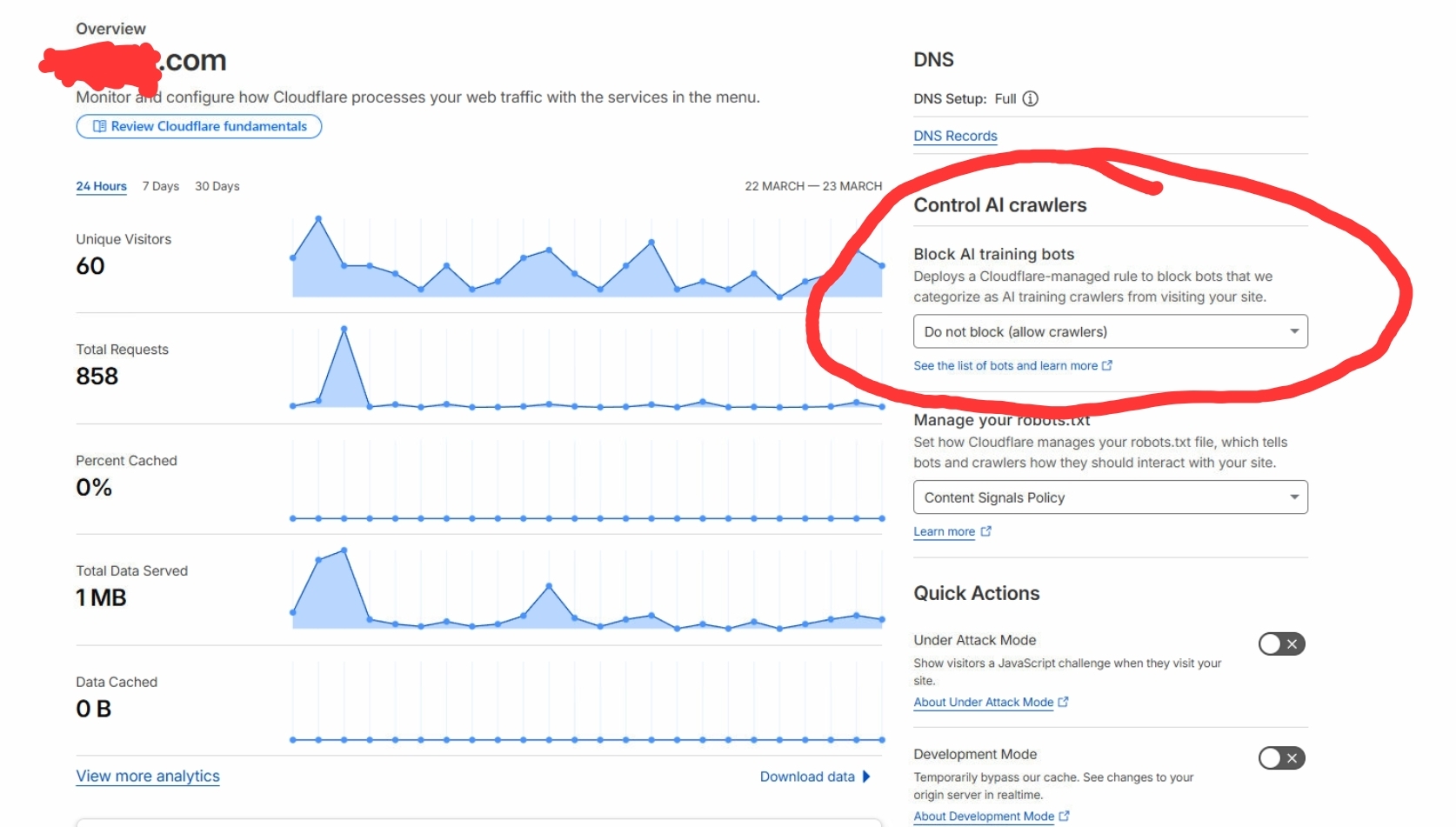
If you're using Cloudflare and your LLM client can't connect to the MCP server (but visiting the URL in your browser works), Cloudflare's "Block AI training bots" setting is almost certainly the cause. This is the most common connection issue for Cloudflare users.
To disable it:
- Log in to Cloudflare
- In the left sidebar, click Domains, then click Overview
- Click on the domain you use for connecting to Home Assistant
- On the right side of the page, find "Control AI Crawlers"
- Under "Block AI training bots", open the dropdown
- Select "do not block (allow crawlers)"
See #783 for more details.
Also check geo / country blocking. This applies to Cloudflare (WAF custom rules) and to any other reverse proxy (NGINX, Traefik, Zoraxy, etc.). Most AI/LLM services connect from US-based cloud infrastructure, so if you block US IP addresses (or only allow your own country), your client cannot connect even with AI-bot blocking disabled. Allow your AI provider's IP ranges — Claude.ai connects from Anthropic's network, 160.79.104.0/21 (see Anthropic's IP ranges). Your proxy's access logs will show the blocked attempts.
If ha-mcp connects to the demo server but fails to reach your local Home Assistant (192.168.x.x, 10.x.x.x, etc.) on macOS, the most common causes are listed below. See #867 (Local Network Privacy), #630 (env vars not reaching ha-mcp), and #773 (Python version/read-only filesystem) for related reports.
1. macOS Local Network Privacy (Sequoia 15+)
macOS Sequoia silently blocks subprocess connections to local network IPs. Claude Desktop spawns uvx as a child process, and macOS may block its outbound LAN connections without showing a permission dialog.
- Check System Settings → Privacy & Security → Local Network for Claude Desktop
- If Claude Desktop is not listed, try restarting it to trigger the permission prompt
Workaround — SSH tunnel to localhost:
Since macOS does not restrict connections to localhost, an SSH port forward bypasses the restriction:
ssh -N -L 8123:localhost:8123 user@your-ha-server-ipThen set HOMEASSISTANT_URL to http://localhost:8123 in your config.
2. Firewall software (Little Snitch, Lulu, etc.)
Third-party firewalls may block python or node processes spawned by Claude Desktop from making network connections. Check your firewall rules and allow connections for these processes. See #780 for an example resolution.
3. http:// vs https://
Home Assistant running in container mode (Docker, K3s) uses HTTP by default. Using https:// causes a TLS handshake error. Use http:// unless you have explicitly configured SSL/TLS or a reverse proxy.
4. Python version too old
ha-mcp requires Python 3.13+. If you are on Python 3.12 or older, uvx installs an outdated version of ha-mcp that may have known bugs (including read-only filesystem errors). Upgrade Python:
brew install python@3.13Then force a refresh:
uvx --refresh ha-mcp@latestIf uvx still uses the old Python after installing 3.13, explicitly pin it by adding --python 3.13 to your config args:
"args": ["--python", "3.13", "ha-mcp@latest"]If your Home Assistant uses HTTPS with a self-signed certificate or custom CA, you may see SSL verification errors.
Docker solution:
-
Create a combined CA bundle:
cat $(python3 -m certifi) /path/to/your-ca.crt > combined-ca-bundle.crt
-
Mount it and set
SSL_CERT_FILE:{ "mcpServers": { "home-assistant": { "command": "docker", "args": [ "run", "--rm", "-e", "HOMEASSISTANT_URL=https://your-ha:8123", "-e", "HOMEASSISTANT_TOKEN=your_token", "-e", "SSL_CERT_FILE=/certs/ca-bundle.crt", "-v", "./combined-ca-bundle.crt:/certs/ca-bundle.crt:ro", "ghcr.io/homeassistant-ai/ha-mcp:latest" ] } } }
If you see Failed to install: pywin32 or os error 32 ("file is used by another process") when starting ha-mcp on Windows, this is caused by two upstream bugs:
- The MCP Python SDK requires
pywin32on Windows even though server-only users don't need it (python-sdk#2233) uvhas a known issue installingpywin32on Windows (uv#17679)
Workaround — use Docker:
{
  "mcpServers": {
    "Home Assistant": {
      "command": "docker",
      "args": [
        "run", "--rm", "-i",
        "-v", "ha-mcp-data:/home/mcpuser/.ha-mcp",
        "-e", "HOMEASSISTANT_URL=http://host.docker.internal:8123",
        "-e", "HOMEASSISTANT_TOKEN=your_token",
        "ghcr.io/homeassistant-ai/ha-mcp:latest"
      ]
    }
  }
}
See #672 for details.
After installing uv, restart your terminal (or Claude Desktop) for the PATH changes to take effect.
Mac:
# Reload shell or restart terminal
source ~/.zshrc
# Or verify with full path
~/.local/bin/uvx --version
Windows:
# Restart PowerShell/cmd after installing uv
# Or use full path
%USERPROFILE%\.local\bin\uvx.exe --version- Restart Claude completely - Use Cmd+Q (Mac) or Alt+F4 (Windows), not just close the window
- Check config file location:
- Mac:
~/Library/Application Support/Claude/claude_desktop_config.json - Windows (traditional installer):
%APPDATA%\Claude\claude_desktop_config.json - Windows (Microsoft Store): path varies by package — see the Windows setup guide for a detection snippet
- Mac:
- Verify JSON syntax - No trailing commas, proper quotes
- Check the MCP icon - Bottom left of Claude Desktop shows connected servers
- Generate a new token:
- Home Assistant → Click your username (bottom left)
- Security tab → Long-lived access tokens
- Create Token → Copy immediately (shown only once)
- Check token format - Don't wrap the token in quotes in your config
- Token expiration - Tokens don't expire by default, but can be revoked
- Open Claude Desktop Settings (gear icon)
- Go to the Developer tab
- Check Local MCP Servers for any errors
- If "Home Assistant" is not listed, check your config file syntax
- Try asking Claude: "Can you list your available tools?"
Fingerprint: The server shows as connected and both initialize and tools/list complete successfully in mcp.log and the per-server log, yet the model sees no tools – and nothing surfaces an error in the UI or the logs.
Fix: Check the server's key in claude_desktop_config.json for parentheses and remove them. For example, renaming the key from "Home Assistant (ha-mcp)" to "HASS ha-mcp" (same URL, everything else unchanged) makes the full tool catalog reappear after a restart. Spaces in the key are fine; parentheses are the characters observed to trigger the drop. If in doubt, keep the key to letters, digits, spaces, _, and -.
Why: The Anthropic API requires every tool name to match ^[a-zA-Z0-9_-]{1,64}$ (tool-definition docs), and Claude Desktop appears to derive each exposed tool's namespaced name from the mcpServers key. Spaces in a key are fine (the reporter confirmed spaces work), but a key with ( or ) leaves the derived names outside that grammar, so the client discards the affected tools before it ever calls the API – which is why the drop leaves no trace in the logs. (Claude Desktop's exact key-to-name handling is not publicly documented; this explanation is inferred from the reporter's bidirectional repro – same URL, only the key changes – together with the published name constraint.)
None of the shipped example configs use parentheses in the key, so a default setup never hits this – it is specifically a hand-authored key like Home Assistant (ha-mcp) that trips it. This is a Claude Desktop client behavior, not a ha-mcp problem: ha-mcp's own tool names are all valid snake_case. See #1743.
If you're having trouble setting up remote access — TLS errors, Cloudflare configuration issues, or port forwarding problems — the Webhook Proxy app may be a simpler alternative.
Instead of requiring a dedicated tunnel to port 9583, the Webhook Proxy routes MCP traffic through Home Assistant's main port (8123) via a webhook. If you already have Nabu Casa or any reverse proxy pointing at your HA instance, this can be the easiest remote setup.
- Install the MCP Server app and the Webhook Proxy app from Settings > Apps > Install app
- Start the webhook proxy and restart Home Assistant when prompted
- Copy the webhook URL from the app logs
- Use that URL in your MCP client configuration
See #784 for an example where this resolved a TLS connection issue.
ChatGPT connectors require a URL reachable from the public internet. If your Home Assistant sits behind a firewall or CGNAT and you don't want to expose it, the community-maintained OpenAI Tunnel for HA-MCP integration by @norpol is an outbound-only alternative:
- It downloads, verifies, and supervises OpenAI's
tunnel-clientas a Home Assistant subprocess (installed as a HACS custom repository; Linuxamd64/aarch64on HA OS / Supervised initially). - The client connects your MCP server URL to an OpenAI-hosted tunnel, so ChatGPT, Codex, and other OpenAI products can reach it — no port forwarding, reverse proxy, or public URL needed.
- Create a tunnel on the Tunnels page and a runtime API key with Tunnels Read and Tunnels Use permissions on the API keys page, point the integration at your local ha-mcp URL, and add the ChatGPT connector using the same tunnel ID.
See the integration's README for full setup and #1811 for background. This is a third-party project — report tunnel issues on its tracker, not here.
- First request is slow -
uvxdownloads packages on first run - Subsequent requests - Should be faster (packages cached)
- Alternative - Use Docker for consistent performance
If you're seeing fewer tools than expected or outdated behavior, uvx may be using a cached old version.
Solution:
# Clear the uv cache
uv cache clean

# Force refresh to latest version
uvx --refresh ha-mcp@latest
Verify the version:
uvx ha-mcp@latest --versionThe version should match the latest release. If you see a much older version, the cache needs clearing.
ChatGPT (web, including Codex Work Mode) caches a connector's tool list and sometimes keeps serving the stale list even after you enable new tools on the server, restart it, and remove and re-add the connector under the same name. Newly enabled tools (for example the beta filesystem/YAML tools) simply never appear in ChatGPT's tool list, even though the server logs show them registered — and other tools on the stale connection may fail with MCP internal errors.
Solution: delete the connector and create a new one with a different name — ChatGPT then fetches a fresh tool list. Re-adding it under the original name is not enough; the cached list survives the re-add.
| Variable | Description | Default | Required |
|---|---|---|---|
HOMEASSISTANT_URL |
Your Home Assistant URL | - | Yes |
HOMEASSISTANT_TOKEN |
Long-lived access token (or demo for demo env) |
- | Yes |
BACKUP_HINT |
Backup recommendation level | normal |
No |
| Mode | Behavior |
|---|---|
strong |
Suggests backup before first modification each day/session |
normal |
Suggests backup only before irreversible operations (recommended) |
weak |
Rarely suggests backups |
auto |
Same as normal (future: auto-detection) |
By default the agent sees every entity. If auto-generated diagnostic or helper
entities clutter search and overview results, you can hide a chosen set of them
from the collection read tools (ha_search, ha_get_overview). In its default
form this is noise reduction, not access control – a hidden entity is still
returned by a direct ha_get_state / ha_get_entity on its entity_id, and
still appears in automation, dashboard, and template content, so do not rely on
the default filter as a security boundary. The opt-in Enforce mode
below turns it into a genuine read barrier: with "enforce": true, direct reads
of a hidden entity are concealed and content reads that would surface one are
refused across tool reads, except for the deliberately unrestricted-by-default
ha_report_issue diagnostic path described below.
Default form: reads only – it does not gate control tools. Without enforce
mode the filter only scopes what the collection read tools return. It does
not stop an agent from calling a service on a hidden entity_id: gating
writes is a separate concern handled by the Tool Security Policies engine (which
matches on a call's arguments), not by visibility. In the default form,
visibility is deliberately read-scoping only, precisely because it is noise
reduction and cannot be a security boundary (content-bearing reads such as
automation and template bodies would leak hidden entities anyway). Enforce mode
changes this by also concealing hidden entities named in a write call's arguments
(see below).
The easiest way to configure it is the Entity Visibility tab in the ha-mcp settings UI (enable toggle, category checkboxes, area/label fields, per-entity denylist). It reads and writes the same file described below, so either surface works.
The filter is off until entity_visibility.json exists in the ha-mcp data
directory (the same directory as tool_policy.json; /data in the app) with
"enabled": true:
{
  "version": 1,
  "enabled": true,
  "exclude_categories": ["diagnostic", "config"],
  "exclude_hidden": false,
  "deny_entity_ids": [],
  "exclude_areas": [],
  "exclude_labels": [],
  "allow_entity_ids": [],
  "allow_areas": [],
  "allow_labels": [],
  "respect_assist_exposure": false,
  "enforce": false,
  "restrict_report_issue": false
}
The filter is a conjunction of independent dimensions: an entity is shown only if it passes every active one.
- Excludes / denylist. An entity is hidden when its
entity_categoryis inexclude_categories, itsentity_idis indeny_entity_ids, or its area/label is inexclude_areas/exclude_labels.exclude_categoriesaccepts only Home Assistant's two entity categories (diagnostic,config); an unknown value is ignored and surfaced as awarningsentry on the next read rather than silently doing nothing. Setexclude_hidden: trueto also fold in entities already marked hidden in Home Assistant. - Allowlist. The moment any of
allow_entity_ids/allow_areas/allow_labelsis non-empty, the filter inverts to restrict mode: only entities matching an allowlist stay visible and everything else – including entities added later – is hidden. Leave all three empty to keep the allowlist off.deny_entity_idsstill wins over an allow match — and so does anyexclude_*match: an entity an allowlist would admit but anexclude_categories/exclude_areas/exclude_labelsalso hides stays hidden (every dimension can only hide, so any one hide is enough — the allow dimensions cannot un-hide what another dimension excluded). - Respect Assist exposure. With
respect_assist_exposure: truethe filter hides entities not effectively exposed to Home Assistant's Assist (conversation) assistant, mirroringasync_should_expose(an explicit per-entity exposure override wins; otherwise, if the instance exposes new entities, the entity's domain and device-class defaults decide). Because HA offers no single "effective exposure" API, the decision is reconstructed client-side from two extra websocket reads per search — the set of entities explicitly exposed to the assistant (expose_entity/list, which reports only the exposed ones) and the "expose new entities" flag that drives the default branch; if either read fails the dimension is skipped with awarningsnote rather than hiding everything. A registry entity's explicit override — exposed or un-exposed — is read directly from the entity-registryoptionsthe registry list already carries, so an explicit un-expose is honored. One residual limit: for an entity that lives only in the state machine (a YAML/template entity with no entity-registry entry), HA surfaces it throughexpose_entity/listonly when it is exposed; an explicit un-expose cannot be observed there, so such an entity falls to its domain/device-class default and stays visible (fail-open).
Set "enforce": true (or the Enforce mode toggle in the Entity Visibility
tab) to turn the same hidden set into a genuine read barrier applied across tool
reads, not just ha_search / ha_get_overview. The default exception is
ha_report_issue, described below. enforce is not a hide
dimension — it does not change which entities are hidden, only how strongly the
hiding is applied — so it is inert unless the filter is also enabled with at
least one active hide dimension. What it covers:
- Direct reads are concealed. A call whose arguments name a hidden entity_id
exactly (
ha_get_state,ha_get_history, …) is refused before the tool runs with a canonicalENTITY_NOT_FOUND, so the entity's state and attributes never flow. Concealment of existence is best-effort: per-tool not-found shapes vary (a bulkha_get_statenormally partial-succeeds, and details/suggestions differ per tool), so a caller deliberately comparing error shapes may infer that an id is hidden rather than absent. Note this also means a bulk read that co-lists one hidden entity is refused as a whole — retry without the hidden id to read the rest. - Collection reads omit hidden entities, exactly as they do without enforce.
In enforce mode this extends to
ha_search's configuration-body matches: an automation, script, scene, helper, or dashboard record that references a hidden entity is omitted from the config results (in the default soft mode such records still appear — that is the documented soft-filter behavior). - Content reads are refused on contact. An ordinary dashboard config,
template result, automation/script body, trace, log, or file read whose output
would surface a hidden entity_id is refused with a generic
ENTITY_VISIBILITY_ENFORCEDerror that never names the matched id. - Writes naming a hidden entity are concealed too. The inbound argument scan
applies to every tool, including service calls: a
ha_call_servicetargeting a hidden entity_id is concealed as not-found, so an agent cannot confirm the entity by trying to control it.
What it deliberately refuses (their output cannot be text-scanned): sandbox
code execution via ha_manage_custom_tool (code / run_saved — pure
list_saved stays allowed) and screenshot/pixel output
(ha_get_dashboard_screenshot, ha_config_get_dashboard with
include_screenshot, or ha_config_set_dashboard with return_screenshot).
One image surface is deliberately exempt: ha_get_camera_image. A camera
the filter does not hide returns physical-world imagery — a photograph, not a
rendering of Home Assistant entity data — so its frames are not gated (a hidden
camera is concealed like any other entity). The residual case is a visible
camera whose view happens to include a display showing a hidden entity's state;
if a camera can see something sensitive, hide the camera too (denylist or its
area).
A second surface is deliberately exempt by default: ha_report_issue.
While "restrict_report_issue": false, it bypasses both visibility scans on
every call — not only during a registry failure — and can return diagnostic
fields such as core, app/add-on, recent, and startup logs that contain hidden
entity_ids. This keeps the troubleshooting path available when visibility
configuration or Home Assistant registry inputs are the problem. Set
"restrict_report_issue": true to scan and refuse it like other tool reads.
Except for that default diagnostic escape hatch, enforce mode fails closed:
if the entity registry (or the config file itself) cannot be loaded, the server
falls back to the last good read from this session — and with none available,
tool calls are refused rather than risk leaking a restricted entity. If no
config can be read, ha_report_issue follows its safe unrestricted default;
if a last-good config opted it in, it fails closed too. The hidden set is cached
for ~30s, so an area/label
membership change in Home Assistant can take up to that long to take effect for
the area/label dimensions (a config edit in the settings UI applies on the next
call).
Because refuse-on-contact applies to the whole hidden set, broad hide
dimensions make refusals frequent: with the default diagnostic/config
category excludes still active, any log, automation, or dashboard read that
mentions a diagnostic entity is refused wholesale. Enforce mode works best with
a targeted deny — the private areas, labels, or entity_ids you actually need
concealed — rather than broad decluttering dimensions.
Honest residual limits. This is a strong barrier against incidental
exposure, not a cryptographic guarantee. A Jinja template (or code) that derives
a hidden entity's state without ever naming its entity_id — e.g.
{{ states | selectattr('state','eq','on') | list | count }} — cannot be caught
by a text scan. Treat enforce mode as robust protection against an agent stumbling
onto hidden entities, not as a boundary against an adversarial prompt author who
is deliberately trying to exfiltrate a hidden entity's state.
version drives optimistic-concurrency for the settings UI (it bumps
on each save so two tabs can't clobber each other); when hand-editing the file,
leave it as-is. The config is read live per request, so edits apply on the next
call. A missing file leaves the filter off; an invalid one leaves the filter
off for search/overview (with a warnings note) while enforce-mode safety falls
back to the session's last good config — with none, tool calls are refused until
the file is fixed (see Enforce mode above). When the filter is enabled but the
registry read degrades, search results are unfiltered with a warnings note
rather than silently wrong.
We'd love to hear how you're using ha-mcp!
- GitHub Discussions — Share how you use it, ask questions, show off your automations
- GitHub Issues — Report bugs or request features
- Home Assistant Forum — Community discussion thread