Using bou is very easy and intuitive. It works just like GNOME 3, but without
all the noise and distractions. It's based on two strong principles:
- Desktop will always be empty and clean.
- Keyboard over mouse.
When you start using bou, this is and always be your desktop:

Click Super button (a.k.a. Windows button) and the search dashboard will show up:
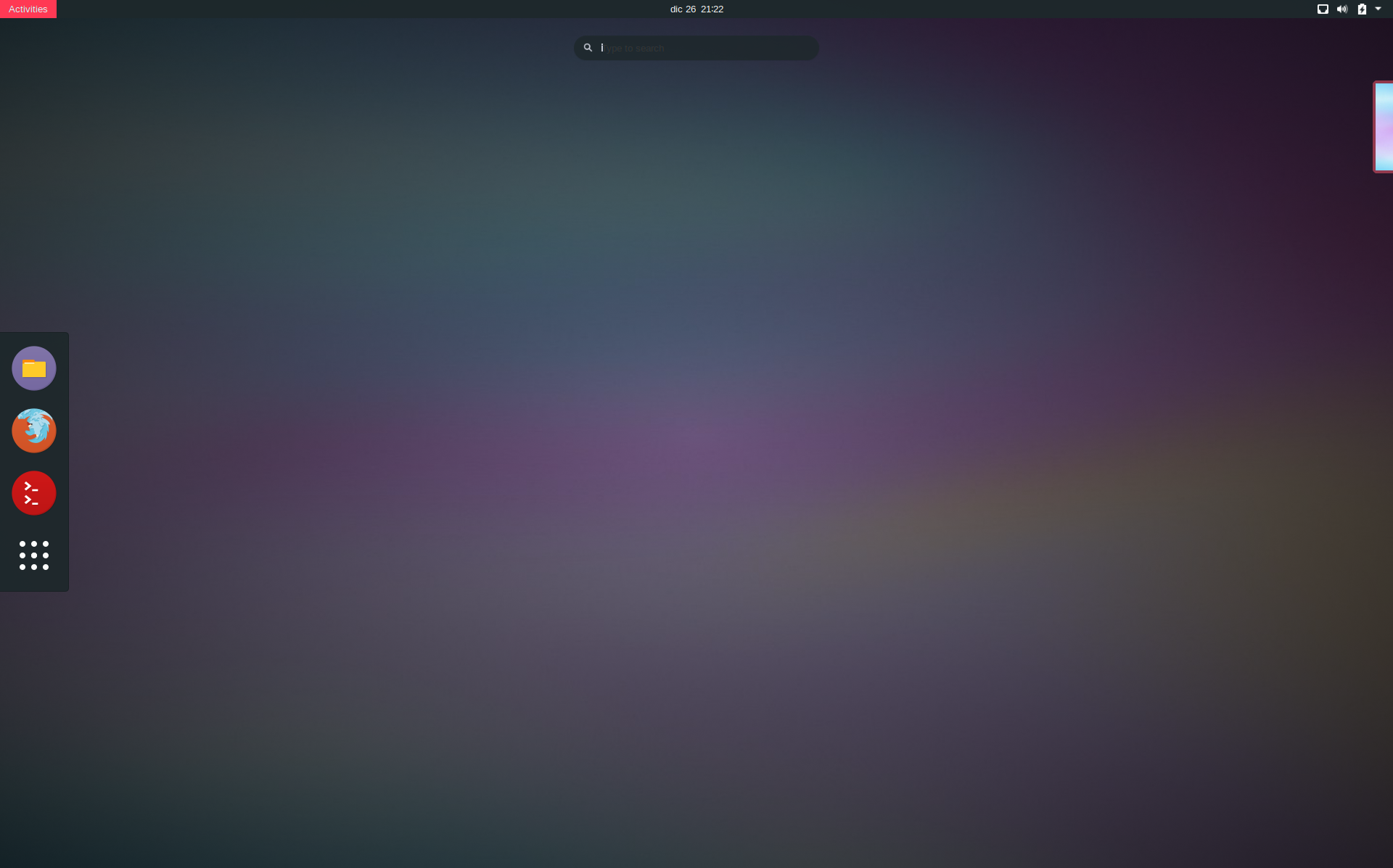
Start typing so you can find your applications, files and directories pretty quickly:
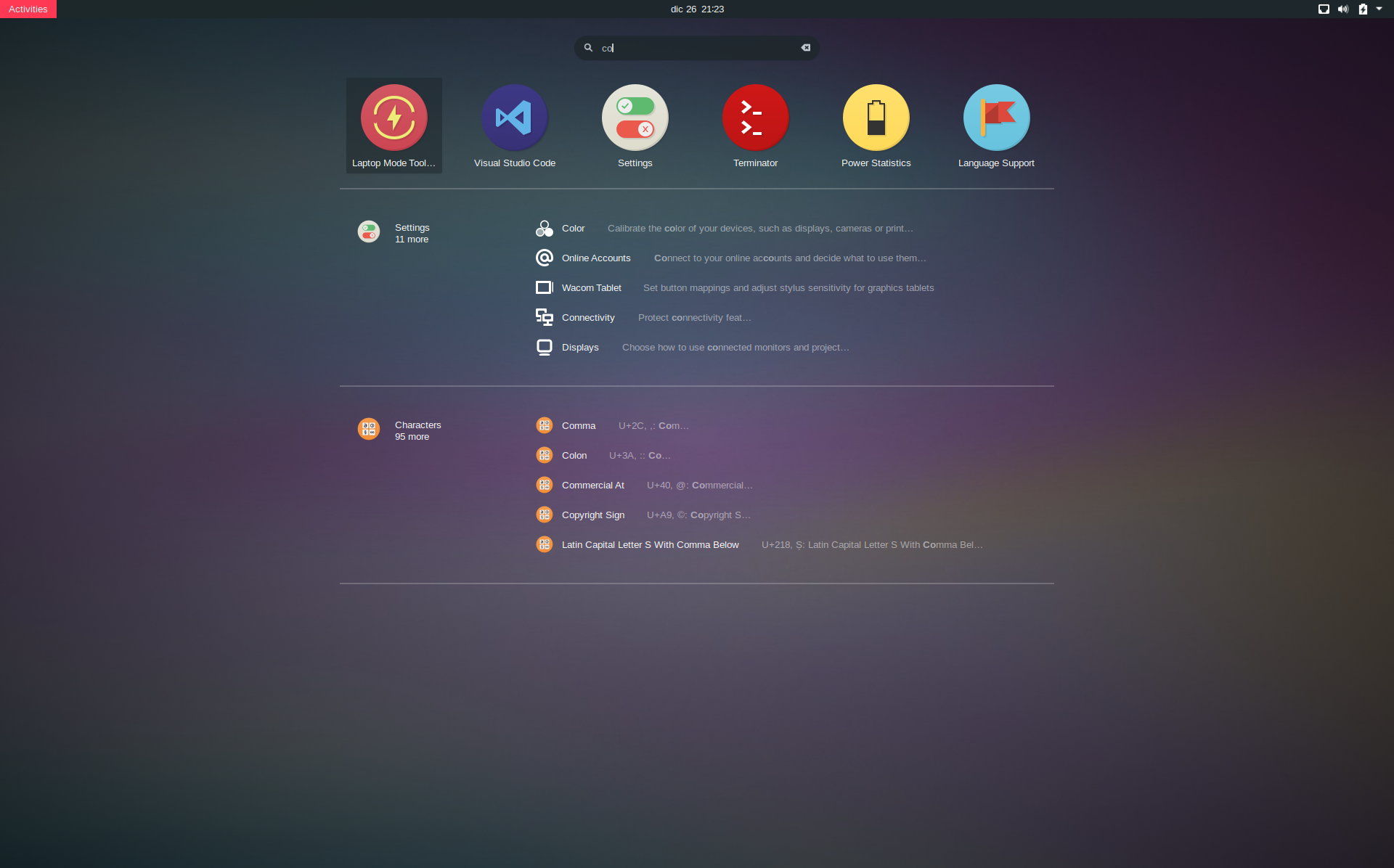
Everything else is pretty much as simple as this. Just move around the dashboard with your keyboard or mouse! Also, take a look at the following shortcuts, which are the most common and useful ones, and will cover 99% of your needs.
| Action | Shortcut |
|---|---|
| Show dashboard | <'Super'> |
| Show top bar | <Alt+b> |
| Switch apps in workspace | <Alt+Tab> |
| Switch apps in all workspaces | <Super+Tab> |
| Switch windows of same app | <Alt+`> |
| Switch between workspaces | <Ctrl+Alt+Arrow Up> or <Ctrl+Alt+Arrow Down> |
| Move app between workspaces | <Shift+Super+Page Up> or <Shift+Super+Page Down> |
| Full screen mode | <'F11'> |
| Maximize window | <Super+Arrow Up> |
| Restore window | <Super+Arrow Down> |
| Minimize window | <Super+h> |
| Close Window | <Alt+F4> |
| Action | Shortcut |
|---|---|
| Open Terminal | <Ctrl+Alt+t> |
| Split window horizontally | <Shift+Ctrl+o> |
| Split window vertically | <Shift+Ctrl+e> |
| Close window | <Shift+Ctrl+w> |
| Copy clipboard | <Shift+Ctrl+c> |
| Paste clipboard | <Shift+Ctrl+v> |
| Full screen mode | <'F11'> |
| Zoom in | <Ctrl+'+'> |
| Zoom out | <Ctrl+'-'> |