- What is a PWA?
- Features
- Installation by Platform
- Using File Handling Features
- Additional Information
- Citations
Progressive Web Apps (PWAs) are web applications that can be installed on your device and work like native applications.
Once installed, teXt0wnz works completely offline.
Desktop (Chrome/Edge):
- OS-level "Open With" integration
- Right-click
.ans,.xb,.bin, etc files → "Open with teXt0wnz"
Android:
- Share sheet integration
- Share files from Files app directly to teXt0wnz
iOS/iPadOS:
- No share target support!
- Manual file picker accepts all file types
- Drag-and-drop from Files app
Supported File Types: .ans, .ansi, .xb, .xbin, .bin, .txt, .nfo, .diz, .utf8ans
This document provides step-by-step instructions for installing a Progressive Web App (PWA), like teXt0wnz across major platforms and browsers. PWAs offer app-like experiences directly from your browser, with offline support and native-like features.
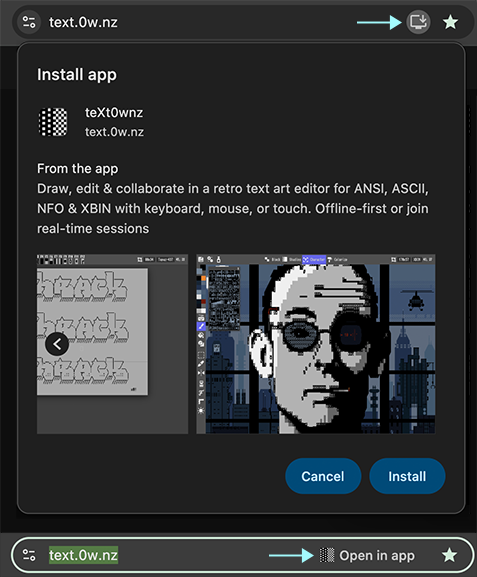
Steps:
- Navigate to the website you want to install as a PWA in Google Chrome.
- If the site is a PWA, you will see a "Install" icon in the address bar (typically a plus (+) symbol inside a monitor).
- Click the "Install" icon.
- Confirm installation in the prompt.
- The app will open in its own window and be accessible from your desktop or app launcher.
What you get after installing:
- Standalone app window
- Desktop shortcut
- OS file association - Right-click text art files → "Open with teXt0wnz"
Reference:
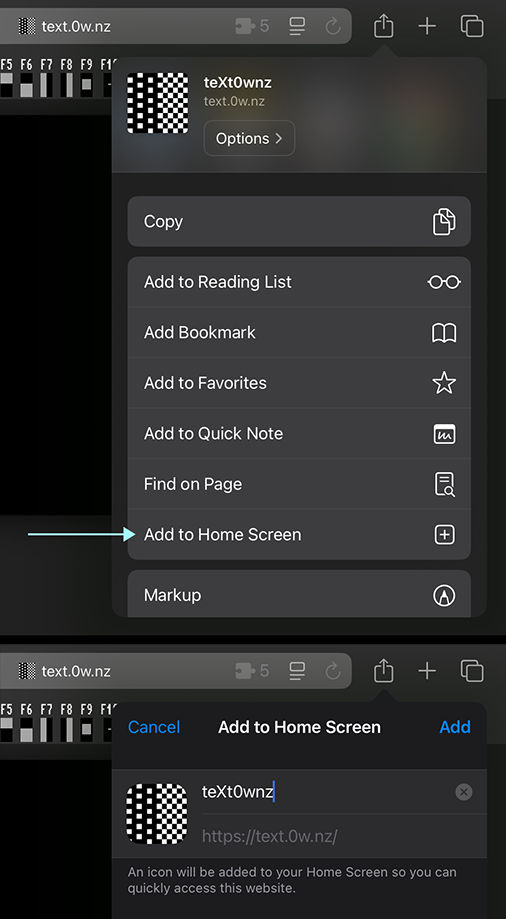
Steps:
- Open the website in Safari on your Mac.
- Click the "Share" button in the Safari toolbar.
- Select "Add to Home Screen."
- The PWA will be added to your Launchpad and can be opened like a native app.
Note: As of macOS Sonoma and later, Safari supports installation of web apps to the dock, similar to PWAs. For older versions, home screen installation is limited or unavailable.
Reference:
Steps:
- Firefox does not natively support PWA installation as a standalone app on desktop.
- You can use a third-party extension like PWAs-For-FireFox
- Alternatively, use Chrome or Edge for PWA installation on desktop.
Reference:
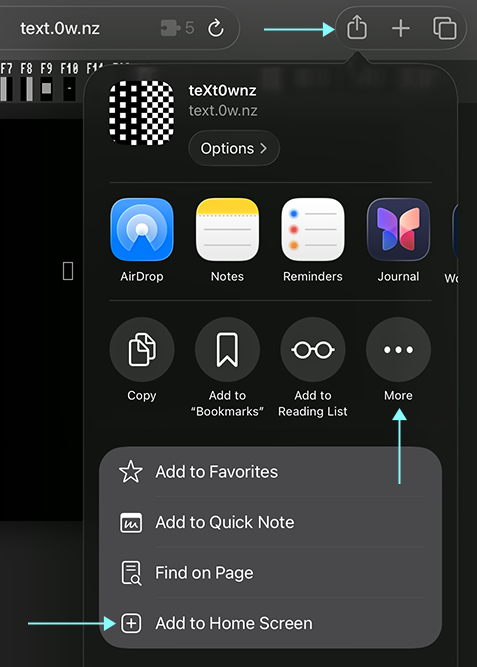
Steps:
- Open the website in Safari on your iPad or iPhone.
- Tap the "Share" button (square with an arrow pointing up).
- Tap the "More" button (Three dots).
- Tap “Add to Home Screen.”
- The web app will appear on your home screen and can be launched like any other app.
What you get after installing:
- Home screen icon
- Enhanced file picker (accepts all files)
- No share target or Finder integration (iOS limitation)
References:
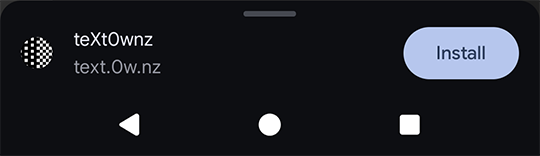
Steps:
- Open the website in Chrome on your Android device.
- If the site is a PWA, a banner or popup may appear prompting installation.
- If not, tap the three-dot menu in the top-right corner.
- Tap “Install app” or “Add to Home screen.”
- Confirm installation; the app icon will appear on your home screen.
What you get after installing:
- Home screen icon
- Share sheet integration - Share files directly to teXt0wnz
Reference:
After installation, you can open text art files directly from your OS:
- Right-click any
.ans,.xb,.bin, etc. file - Select "Open with" → "teXt0wnz"
- File opens directly in the app
First time setup (Chrome/Edge):
- The first time you open a file, Chrome may ask to confirm the file association
- Check "Always use teXt0wnz" to remember your choice
After installation, you can share files to teXt0wnz:
- Open Files app
- Long-press a text art file (or the 3 dots from a file manager app)
- Tap "Share"
- Select "teXt0wnz" from share sheet
- File opens in the app
iOS doesn't support share targets, but you can still open files:
Method 1: File Picker
- Tap "Open" in teXt0wnz menu
- Tap "Browse" in file picker
- All files are selectable (not just recognized types)
Method 2: Drag & Drop
- Open Files app
- Use Split View to show both Files and teXt0wnz
- Drag files from Files into teXt0wnz
- For Microsoft Edge (desktop/mobile), installation steps are nearly identical to Chrome.
- Some browsers and platforms may not fully support all PWA features or installation flows.