Git Style Guide
4 types of remote branches
- WIP Work In Progress
- FEAT Feature
- BUG Bugfix
- JUNK Junk branch or experimentation branch
WIP, FEAT branches must branch from release_dev and merge back into release_dev.
Bug branches can branch off of either master or release_dev
JUNK branches can branch off of either master or release_dev however,
FEAT branches originate from the Zenhub/Trello backlog and must include the issue tracking number in the remote branch.
WIP branches are used only under the following situations:
- A feature that does not originate from the Zenhub/Trello backlog
- A feature will be worked on by multiple people
- A feature originates from user feedback or discussion from CivicTech Fredericton members during a meeting.
If you are unsure what type of branch you need to create/use contact Charles O'Brien (Once this guide has been finished refer to it).
use dash (–) to separate
WIP-(name)-(optional desc/keyword)
FEAT-(name)-(optional desc/keyword)
BUG-(name)-(optional desc/keyword)
JUNK-(name)-(optional desc/keyword)
Example
JUNK-CharlesOBrien-Experimental-Features
Up to you, however, to avoid problems we recommend that your local branch has the same name as your remote branch. See git command-line tutorial for further explanation.
With regards to commit messages please follow the 7 golden rules for committing:
- Separate subject from the body with a blank line
- Limit the subject line to 50 characters
- Capitalize the subject line
- Do not end the subject line with a period
- Use the imperative mood in the subject line
- Wrap the body at 72 characters
- Use the body to explain what and why vs. how
If you want to reference an issue, please add it to the end of your commit.
However, sometimes there are times when a commit does not require both a subject and body. If the change is simple and you can convey what you did in a single line then you may do so.
ex: Fixed spelling mistake on registration form
However, for full length commits, i.e. those that follow the rules, it is best to use a text editor to write your commits, -m from the command line can be a pain. We will leave the choice of editor up to you, however, if you are new to git or you are unfamiliar with Vi/Vim we recommend that you do not use either editor.
With regards to committing without leaving a message, we cannot stop you from doing this and we understand that CivcTech Fredericton is not like a regular programming job. If you commit without leaving a message please see the following example and try to adapt it to your situation:
Charlie is working on a new feature and believes he can get it done in 2 hours. He tends to commit often as a means of saving his work and does not leave appropriate commit messages if any. For clarity, he has chosen to leave 3 commit messages that follow the rules. One at the beginning after he has created the feature branch and is about to begin work, a second commit message halfway through his coding session and a final commit message when he has completed the feature or the 2 hours he has set aside have expired whichever comes first.
We use a branching model similar to Atlassian's Gitflow Workflow (note we do not use the Gitflow Workflow wrappers, it is untested with our repositories). Master is our production branch, release_dev is our development branch. Additional dedicated branches will be added as needed. When cloning the project for the first time release_dev will be your default branch. From there branch off and create your desired branch.

Do not rebase, even if you know what you are doing, use pull or fetch and merge.
Do not go around the designated merge master(s) and merge into release_dev without a review.
Do not go around the designated merge master(s) and merge into master without a review.
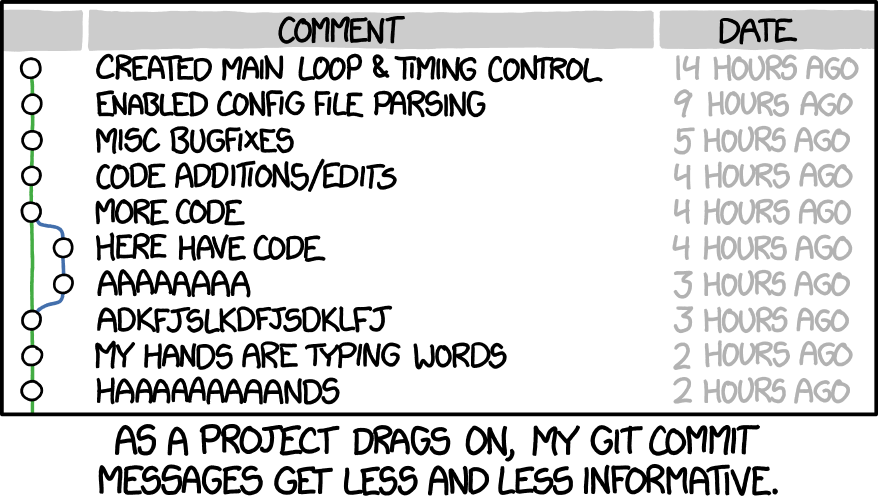
With regards to commits do not commit with messages such as
“Added CSS” or “Added Code”. Also, try to avoid this
Master is off-limits! We have locked down access. If you need to access it you must ask they are the only ones who can grant access to that branch.
We require public-private ssh keys. If you do not know how to create one see the tutorial below. If you do not feel comfortable using the terminal you can use the following, which have been tested and verified to work: Git Extensions Git within Jet Brains Web Storm IDE Git within Jet Brains PyCharm IDE (Full and Community editions)
The following GUI client(s) offer limited usage with our repositories GitKraken
When cloning the repository the default branch has been set to release_dev.
You are responsible for deleting your remote branches that are not deleted as part of a pull request.
Create a new branch for every new feature. Each new branch should branch off of release_dev, you can track release_dev if you choose to do so, however, you do not have to. Use pull requests to merge new code into release_dev.
This tutorial is from the perspective of a first time user, written by someone who has decided to take a long and careful approach in order to avoid mistakes. If you follow this tutorial you will have some errors, this was done intentionally and solutions/workarounds to these errors will be provided. Generic examples, as well as ones that use the Caring Calander UI repository (CCUI, https://github.com/CivicTechFredericton/caring-fredericton-ui), will be used. Screenshots of every step of this tutorial will be made available at a later date.
From the beginning
cloning
git clone <some repository name>.git
CCUI
git clone git@github.com:CivicTechFredericton/caring-fredericton-ui.git
creating a local branch (branched from release_dev)
git checkout -b <name of your local branch>
CCUI
git checkout -b FEAT-Charles-OBrien-faq-page
adding files
git add .
check status
git status
commit
git commit -m "Your commit msg goes here <Remember to follow the commit guide>"
push
git push
resolving error
You will get an error stating that your current (local) branch has no upstream branch. To rectify this use the command
git push --set-upstream origin<your-local-branch-name>
CCUI
git push --set-upstream origin FEAT-Charles-OBrien-faq-page
creating a new local branch
git checkout -b <name of your local branch>
switching between local branches
git branch <name of branch>
listing all branches
git branch
listing only remote branches
git branch -r
listing only local branches
git branch -l
pulling
git pull
Generating public-private ssh keys. see this video https://www.youtube.com/watch?v=WgZIv5HI44o
???
Pro Git by Scott Chacon and Ben Straub https://git-scm.com/book/en/v2
Visualizing Git Concepts with D3 http://onlywei.github.io/explain-git-with-d3/
Buckey's tutorial on git https://www.youtube.com/playlist?list=PL6gx4Cwl9DGAKWClAD_iKpNC0bGHxGhcx
Learn Git Branching https://learngitbranching.js.org/
Git Tricks https://devhints.io/git-tricks
Git notes for professionals https://books.goalkicker.com/GitBook/
Learn Git with Git Kraken https://www.gitkraken.com/learn-git