python-obs is a Python package that wraps the OBS WebSocket API functionality in order to provide easy programmatic access to OBS resources using Python. This package is designed to abstract as much configuration away so content creators can quickly and easily write scripts to automate tasks in OBS studio. Having dabbled in streaming myself, I was looking for a package like this with very clear documentation; this package was designed with my own experiences and desires in mind. This package will be open to contributions soon.
Getting started with python-obs is very simple. Make sure you have the package installed with
pip install python-obs
In OBS Studio select Tools > WebSocket Server Settings
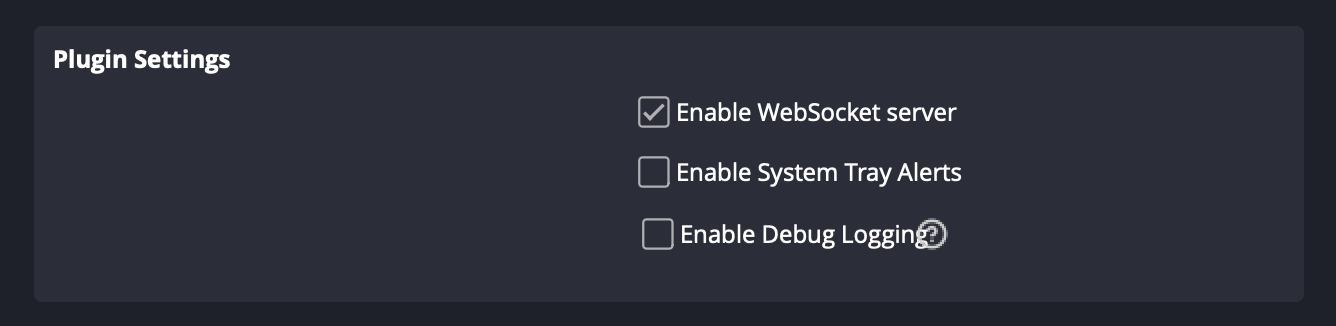
Under Plugin Settings make sure Enable WebSocket server is checked.
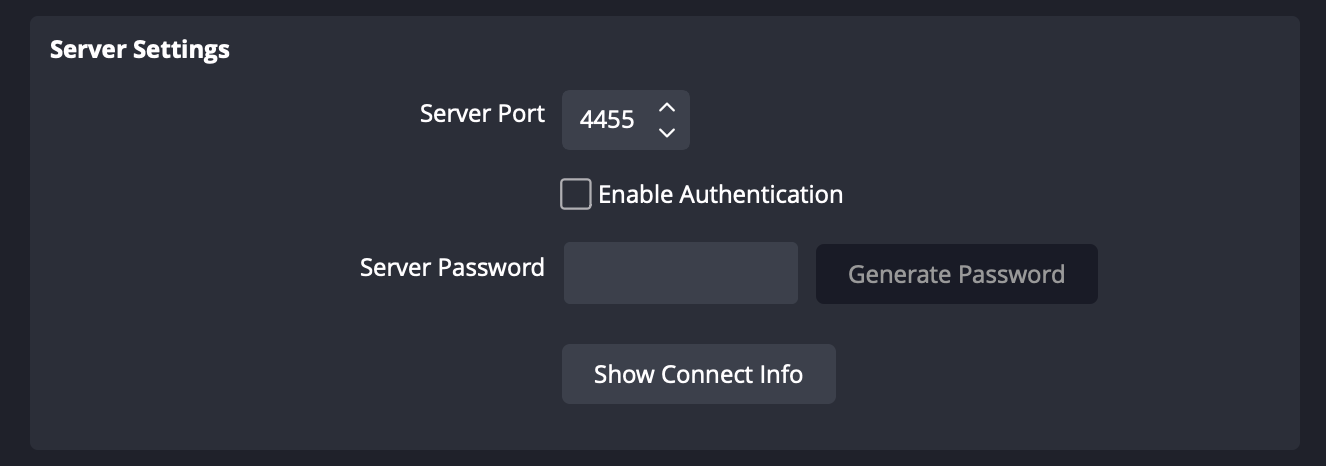
Under Server Settings select a Server Port (4455 is recommended). If you desire to set a password, check the Enable Authentication checkbox and set a strong Server Password. Keep all of this information, since it will be required to connect python-obs to your OBS WebSocket Server.
Now that your OBS WebSocket Server is setup, you can connect to it via python-obs.
from python_obs.clients import OBS

obs = OBS()
obs.connect()
OBS() takes three parameters: host (default is localhost), port (default if 4455), and password (default is None, meaning authentication is not enabled on the OBS WebSocket Server). Below is an example with a custom port and password.
from python_obs.clients import OBS

obs = OBS(port=8000, password="StrongPassword1234!")
obs.connect()python-obs provides both synchronous and asynchronous clients.
The synchronous client is the default client. It is built on top of the asynchronous client. The synchronous client is ideal for simple use cases, like running individual commands.
To use the synchronous client import the OBS class from python_obs.clients
from python_obs.clients import OBS

obs = OBS()
obs.connect()

obs.scene("Main").source("Camera").set_rotation(90)The asynchronous client is the recommended client for more advanced use cases, like FastAPI integration.
To use the asynchronous client import the OBSAsync class from python_obs.clients
import asyncio
from python_obs.clients import OBSAsync

async def main():
    obs = OBSAsync()
    await obs.connect()

    await obs.scene("Main").source("Camera").set_rotation(90)

if __name__ == "__main__":
asyncio.run(main())To set the current scene use
obs.set_scene(SCENE_NAME)To create a new scene use
obs.create_scene(SCENE_NAME)To delete a scene use
obs.delete_scene(SCENE_NAME)To create a new source in a scene use
scene.create_source(NAME, KIND, SETTINGS, ENABLED)
For example if you want to create an image source use
obs.scene("Main").create_source(
    name="ImageSource",
    kind="image_source",
    settings={
        "file": "test.png"
    },
)
To delete a source in a scene use
scene.delete_source(NAME)
To set the position of a source use
source.set_position(POSITION_X, POSITION_Y)To translate a source from its current position use
source.translate(PIXELS_X, PIXELS_Y)To translate in a specific direction use
source.translate_right(PIXELS_X)
source.translate_left(PIXELS_X)
source.translate_up(PIXELS_Y)
source.translate_down(PIXELS_Y)To set the specific orientation of a source use
source.set_rotation(ORIENTATION)To rotate a source from its current orientation use
source.rotate(DEGREES)To rotate a source in a specific direction use
source.rotate_clockwise(DEGREES)
source.rotate_counterclockwise(DEGREES)To set the scale of a source use
source.set_scale(SCALE_X, SCALE_Y)
source.set_scale_X(SCALE_X)
source.set_scale_Y(SCALE_Y)
To scale a source from its current size use
source.scale(FACTOR_X, FACTOR_Y)
source.scale_X(FACTOR_X)
source.scale_Y(FACTOR_Y)To crop a source use
source.crop(BOTTOM_PIXELS, LEFT_PIXELS, RIGHT_PIXELS, TOP_PIXELS)To set crop from one specific direction use
source.crop_bottom(PIXELS)
source.crop_left(PIXELS)
source.crop_right(PIXELS)
source.crop_top(PIXELS)To hide a source use
source.hide()To show a source use
source.show()To toggle visibility on a source use
source.toggle_visibility()To lock a source use
source.lock()To unlock a source use
source.unlock()To toggle locking on a source use
source.toggle_lock()To explicitly state the width and height of a source use
source.set_size(WIDTH_PIXELS, HEIGHT_PIXELS)
To explicitly state just the width or the height of a source use
source.set_width(PIXELS)
source.set_height(PIXELS)
To stretch the source to fit the screen use
source.stretch_to_screen()
To fit the source to the screen use
source.fit_to_screen()
Using python-obs is very easy. Make sure you have the package installed with
pip install python-obs
Below is some example code to demonstrate basic operations in python-obs.
Set the rotation of the Camera source in the Main scene to 90 degrees.
from python_obs.clients import OBS

obs = OBS()
obs.connect()

obs.scene("Main").source("Camera").set_rotation(90)
Alternatively you can format the same code in this format.
from python_obs.clients import OBS

obs = OBS()
obs.connect()

main = obs.scene("Main")
source = main.source("Camera")
source.set_rotation(90)