Home
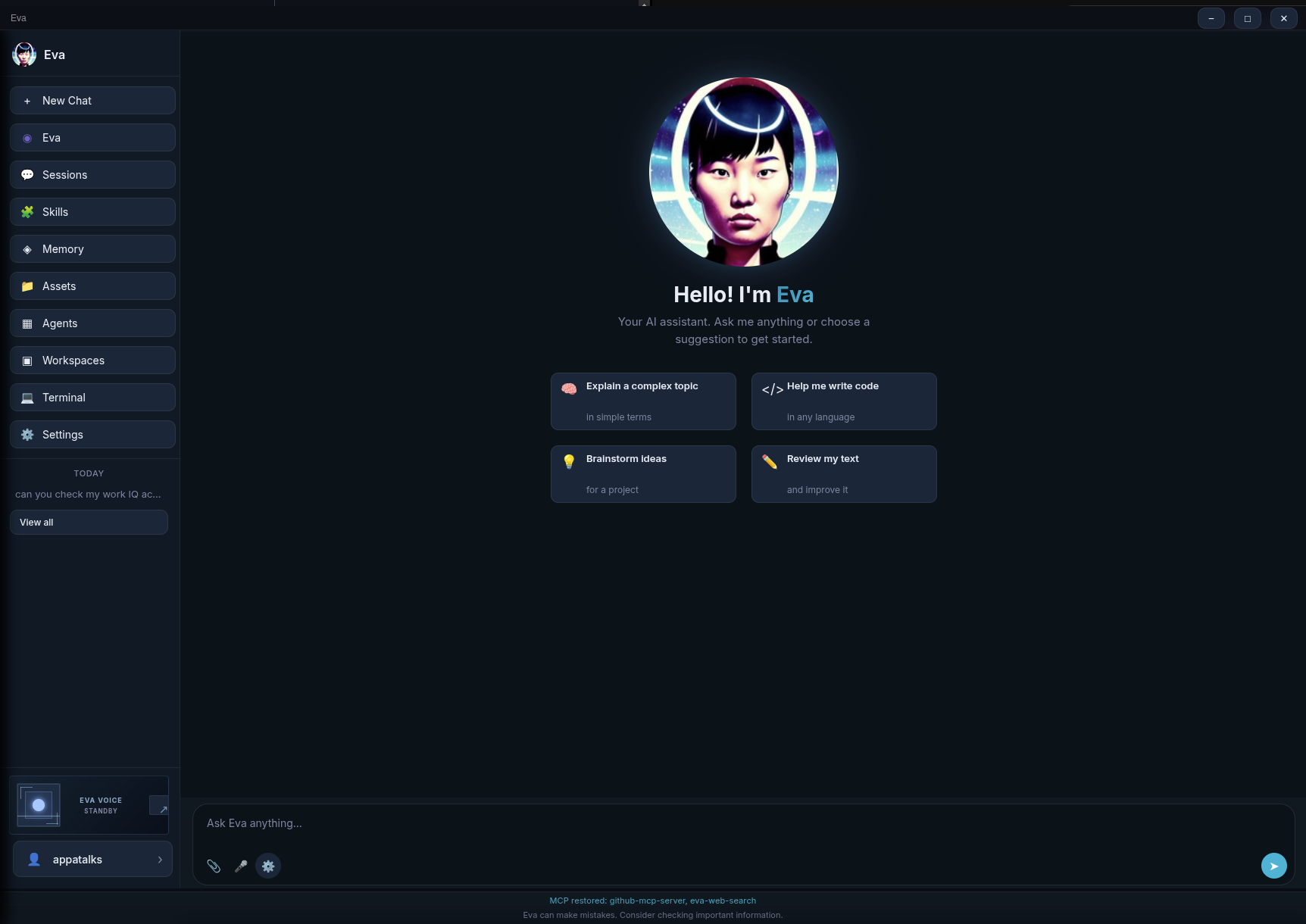
Eva is a voice-first AI assistant for conversation, memory, automation, and local or cloud-backed work. It brings chat, persistent memory, skills, tools, coding workspaces, and optional browser and desktop control into one desktop experience while keeping configuration and runtime state on your machine.
Start here: Install Eva, choose Eva (AIG) in the model menu, then configure only the services you intend to use. Local SQLite memory works by default; cloud providers, Copilot, and automation are optional.
| I want to... | Read this |
|---|---|
| Install Eva and have a useful first conversation | Getting Started |
| Learn the chat, Voice View, and daily controls | Using Eva |
| Choose between AIG, Copilot, OpenAI, Gemini, or LM Studio | Models and Providers |
| Understand what Eva remembers and how approvals work | Memory, Learning, and Privacy |
| Use browser, desktop, camera, image, artifact, alert, or scheduled work | Abilities and Automation |
| Give Eva reusable instructions or work on a codebase | Skills and Workspaces |
| Run locally with LM Studio or connect MCP tools | Local Mode and MCP |
| Diagnose setup or runtime problems | Troubleshooting |
- Converse naturally: Use typed chat, voice input, text-to-speech, and camera-aware interactions.
- Remember with intent: Maintain local SQLite memory by default, or use an optional Azure Data Explorer backend. Memory context helps Eva personalize responses without silently changing your chat transcript.
- Work with tools: Retrieve data through MCP, create downloadable files, search the web, generate or find images, and coordinate specialized agents.
- Automate deliberately: Run browser and desktop tasks, manage recurring work, alerts, and optional Signal notifications, with approvals for actions that can make changes.
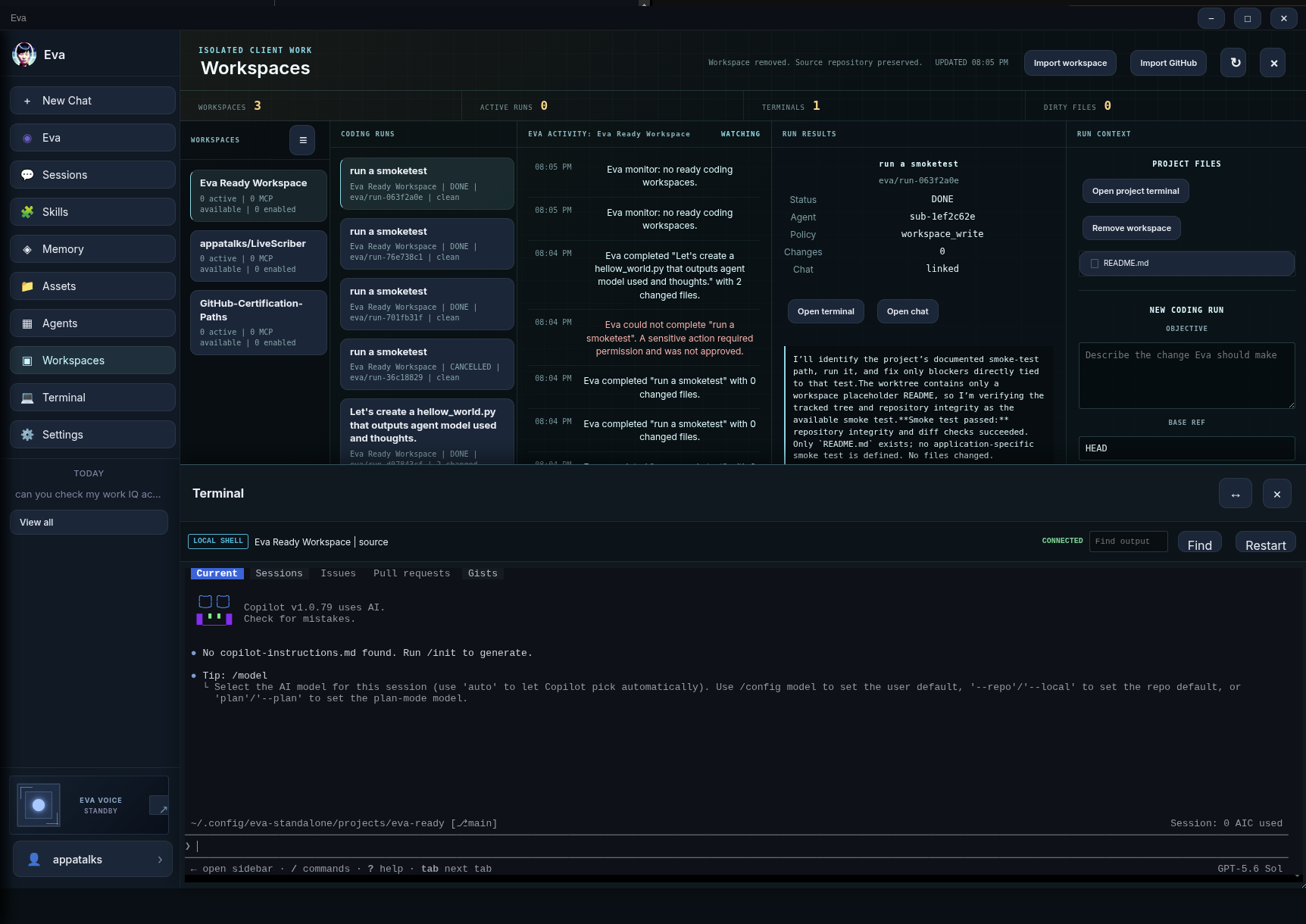
- Build software in isolation: Import Git projects into managed coding workspaces, run agents in dedicated worktrees, inspect results, and choose whether a run may auto-approve sensitive actions.
- Stay flexible: Use the integrated Eva (AIG) experience, direct provider APIs, a Copilot CLI-backed route, or fully local LM Studio models.
On Linux, install the standalone release:
curl -fsSL https://appatalks.github.io/eva-agent/get-eva.sh | bash
eva
Eva is also added to the system application menu. For source builds, Windows packaging, and runtime prerequisites, see Getting Started.
- Open Settings and select Eva (AIG) from the model menu.
- In Settings > Auth, add a key or sign in only for the provider you plan to use. Skip this step for a local LM Studio setup.
- Ask Eva for a concrete outcome: a plan, a summary, research, a file, or a small coding task.
- Review each in-chat approval before Eva performs a write, external change, opaque execution, or another higher-risk action.
- Add a Skill or create a Coding Workspace once you have a recurring workflow.
| Voice and settings | Agent work and coding workspaces |
|---|---|
 |
 |
- Eva website
- Source repository
- Issue tracker
- Developer Guide for architecture, source builds, and validation
Eva is MIT licensed. Never place API keys, personal access tokens, private workspace data, or other secrets in issues, Skills, screenshots, or wiki pages.