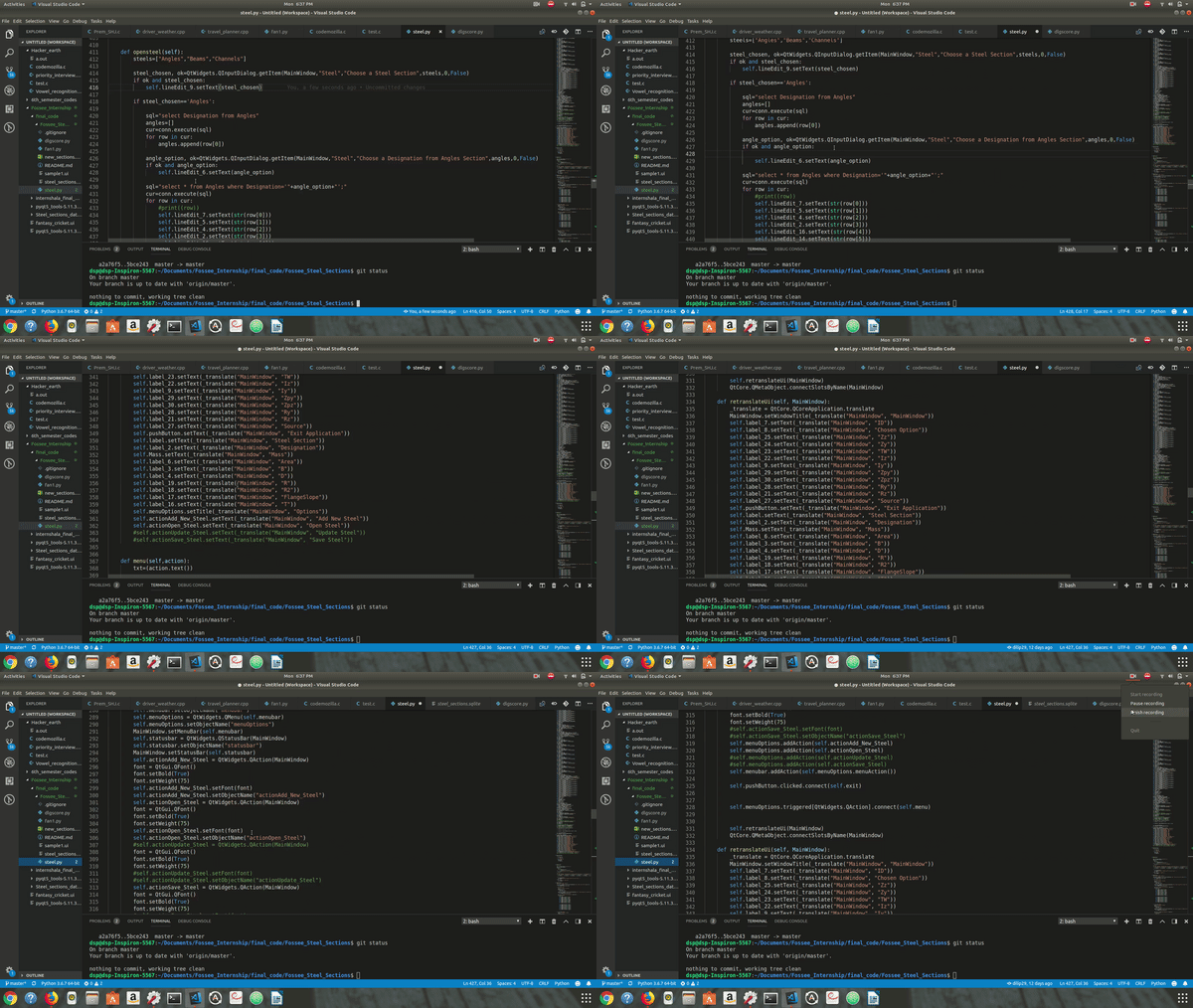
This is a Steel Desktop application build in python that allows user to access data of a steel ...see its various types and features also add a new steel to the Steel database
Displaying the properties of the steel section from the given database. Appending properties of new steel section(s) to the current database.
You're sections headers will be used to reference location of destination.
- Description
- Run Setup
- Installer for Windows
- Use of Badges
- Features
- Tools Installation
- Code Snippet
- Tools
Fosse Steel is build in python using
Pyqt5library specificallyQtCoreQtGuiQtWidgetsfor GUI development andSqliteStudiofor Back end database connectivity.
- Click on the drive link https://drive.google.com/open?id=11Oc9WW46NQdwIQxk0StbKs3ldKyl0m3r
- Download the setup folder
- Open the setup folder and Run the setup.exe file
- Hurray !! ...you are done...Enjoy the application
- Click on the drive link https://drive.google.com/open?id=11Oc9WW46NQdwIQxk0StbKs3ldKyl0m3r
- Download the Installer folder
- Install the My Application-0.1-amd64.msi file
- You are good to go !!! ... Enjoy



- For more on these wonderful
badges, refer tobadgerbadgerbadger.

- Open a specific steel
- Select among various types of steels
- View various features of steel selected
- Add a new steel entry to the database
- install
PyQt5python library using pip
pip3 install PyQt5- install
xlrdlibrary using pip
pip3 install xlrd- Install SqliteStudio accessing database "Steel_section.sqlite"
- Download Sqlite Studio - Sqlitestudio

        sql="select Designation from Channels"
            channels=[]
            cur=conn.execute(sql)
            for row in cur:
                channels.append(row[0])

            channel_option, ok=QtWidgets.QInputDialog.getItem(MainWindow,"Steel","Choose a Designation from Channels Section",channels,0,False)
            if ok and channel_option:
                self.lineEdit_6.setText(channel_option)