Keyboard Shortcuts
🌐 Language: English | Français
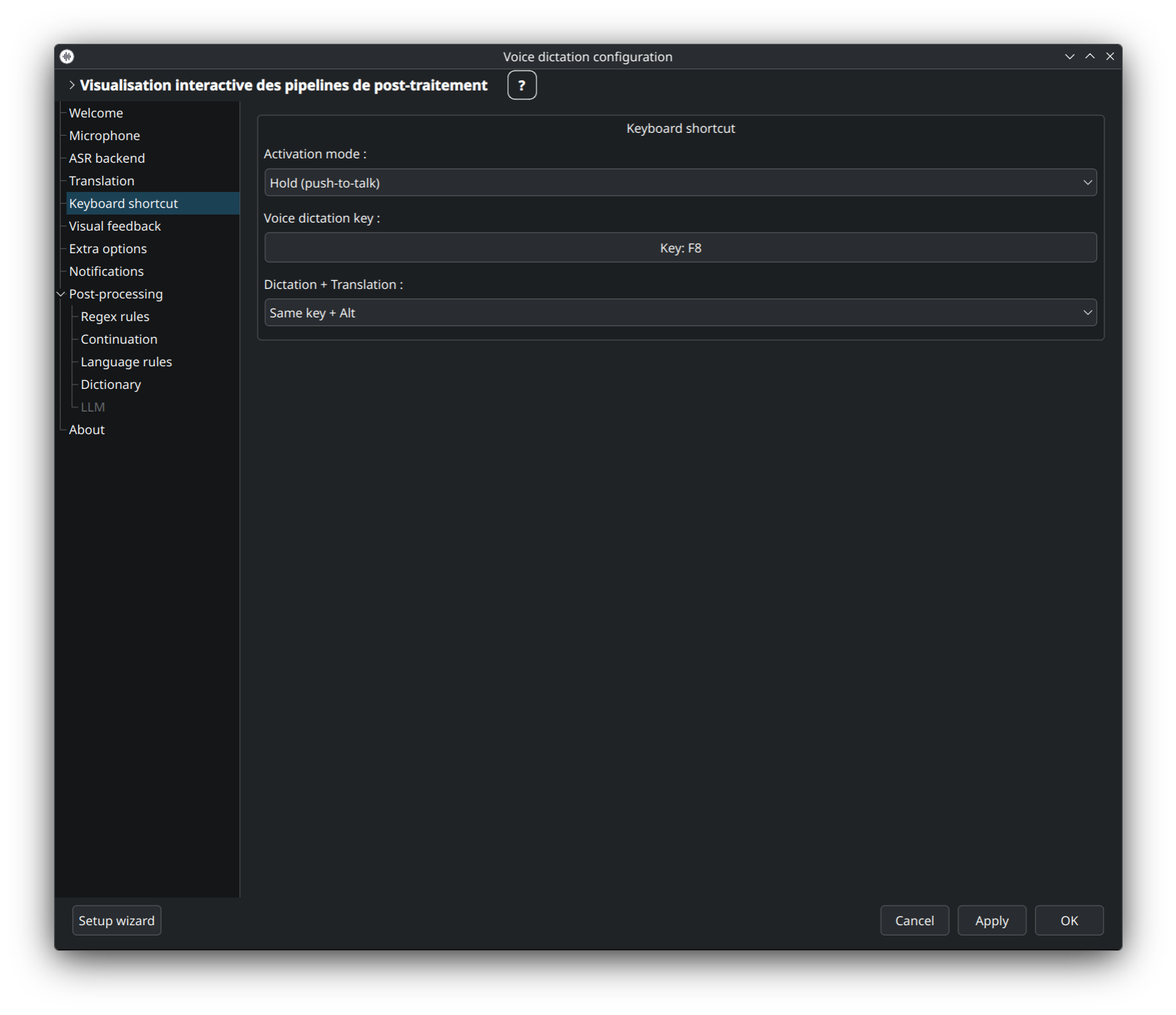
dictee uses global keyboard shortcuts to toggle dictation without touching the mouse. The shortcut is bound by the Setup Wizard on first run and can be rebound later via the setup UI or directly in your desktop's shortcut settings.
Two shortcuts are configured: one for plain dictation (transcribe in source language) and one for dictation + translation (transcribe then translate to your chosen target). Both default to F9 and can be customized.
- Default bindings
- How dictee captures shortcuts
- Setup Wizard shortcut capture
- KDE Plasma
- GNOME
- Tiling window managers
- dictee-ptt daemon (universal fallback)
- Double-tap mode
- Troubleshooting
| Action | Default shortcut | Customizable |
|---|---|---|
| Toggle dictation | F9 |
Yes |
| Toggle dictate + translate | Alt+F9 |
Yes |
| Toggle voice-commands cheatsheet | Shift+F9 |
Yes |
| Cancel current recording |
Escape (during animation-speech overlay) |
No |
The translate and cheatsheet shortcuts both reuse the same physical dictation key (here F9) with an extra modifier — picked from a combo in dictee-setup (Same key + Alt / Ctrl / Ctrl+Alt / Shift / Super, Separate key, Disabled). Default modifiers: Alt for translate, Shift for cheatsheet (since v1.3.4 — previously Ctrl+Alt in v1.3.1 and earlier, then briefly Disabled in v1.3.2/v1.3.3 due to a Ctrl+Alt+Fn TTY collision).
Why F9? It's almost never mapped by default on any distro, works across all keyboard layouts (no modifier combinations needed, no conflicts with editor shortcuts), and is physically easy to reach.
F9 translates to Linux keycode 67 (shown in xev, wev, or the dictee setup capture dialog).
dictee supports three shortcut mechanisms, in order of preference:
When available, the Setup Wizard writes the shortcut directly to your desktop's shortcut database:
-
KDE: via
kglobalshortcutsrc+ D-Buskglobalaccelactivation -
GNOME: via
gsettings set org.gnome.settings-daemon.plugins.media-keys custom-keybindings
This is the most reliable path — the shortcut works even on Wayland, respects keyboard layout switching, and is disabled cleanly on logout.
When native shortcuts are not applicable (tiling WMs, minimal setups), dictee-ptt runs as a systemd user service and listens to /dev/input/event* directly for the configured keycodes. This works on any compositor but requires the user to be in the input group.
For Sway / i3 / Hyprland, you add a line to your WM config:
bindsym F9 exec dictee
bindsym Mod1+F9 exec dictee --translate
The Setup Wizard shows the exact line for your WM.
When you click "Capture shortcut" in the wizard:
- A dialog appears asking you to press the key (or key combo) you want
-
dictee-pttis temporarily paused so the key reaches Qt (instead of being consumed by dictee-ptt) - Qt receives the keyCode and modifiers
- The wizard maps the keyCode to a human-readable name (
F9,Alt+F9,Super+Space…) - You confirm, and the wizard writes the shortcut to the right backend (KDE/GNOME/dictee-ptt)
Why pause dictee-ptt during capture: otherwise dictee-ptt would intercept F9 and start a dictation instead of letting Qt see the key press. The pause + resume handshake is in dictee-setup.py:2581-2598.
The wizard writes to ~/.config/kglobalshortcutsrc:
[com.github.rcspam.dictee.desktop]
_k_friendly_name=Dictée
dictee=F9,F9,Start dictation
dictee-translate=Alt+F9,Alt+F9,Start dictation with translation
Then activates via D-Bus:
qdbus6 org.kde.kglobalaccel /kglobalaccel org.kde.KGlobalAccel.setShortcut ...This means the shortcut is effective immediately without logout. Changing it via System Settings → Shortcuts → Custom Shortcuts → Dictée works too (standard KDE UI).
The wizard writes to GSettings:
gsettings set org.gnome.settings-daemon.plugins.media-keys custom-keybindings "['/org/gnome/settings-daemon/plugins/media-keys/custom-keybindings/dictee/']"

gsettings set org.gnome.settings-daemon.plugins.media-keys.custom-keybinding:/org/gnome/settings-daemon/plugins/media-keys/custom-keybindings/dictee/ name 'Dictée'
gsettings set org.gnome.settings-daemon.plugins.media-keys.custom-keybinding:/org/gnome/settings-daemon/plugins/media-keys/custom-keybindings/dictee/ command '/usr/bin/dictee'
gsettings set org.gnome.settings-daemon.plugins.media-keys.custom-keybinding:/org/gnome/settings-daemon/plugins/media-keys/custom-keybindings/dictee/ binding 'F9'
Take effect immediately — no restart. Also visible in Settings → Keyboard → View and Customize Shortcuts → Custom Shortcuts.
Add to ~/.config/sway/config:
bindsym F9 exec /usr/bin/dictee
bindsym Mod1+F9 exec /usr/bin/dictee --translate
bindsym Mod4+F9 exec /usr/bin/dictee --meeting   # optional: meeting mode
Reload: swaymsg reload.
Add to ~/.config/i3/config:
bindsym F9 exec --no-startup-id /usr/bin/dictee
bindsym Mod1+F9 exec --no-startup-id /usr/bin/dictee --translate
Reload: i3-msg reload.
Add to ~/.config/hypr/hyprland.conf:
bind = , F9, exec, /usr/bin/dictee
bind = ALT, F9, exec, /usr/bin/dictee --translate
Reload: hyprctl reload.
dictee-ptt is the universal fallback — it works on any compositor, any WM, with or without a desktop environment. It listens to /dev/input/event* directly via evdev.
Usage (handled automatically by the wizard):
dictee-ptt [--mode=toggle|hold] [--key=67] [--key-translate=67] [--mod-translate=alt]Modes:
-
toggle(default): press once to start, press again to stop -
hold: press and hold to record, release to stop + transcribe (walkie-talkie style)
Separate keys for dictate vs translate:
# F9 dictate, F10 translate
dictee-ptt --mode=toggle --key=67 --key-translate=68

# F9 dictate, Alt+F9 translate
dictee-ptt --mode=hold --key=67 --key-translate=67 --mod-translate=alt/dev/input/event* requires group membership:
sudo usermod -aG input $USER
# log out and back in
The Setup Wizard checks this and prompts you if it's missing.
F1=59   F2=60   F3=61   F4=62   F5=63   F6=64
F7=65   F8=66   F9=67   F10=68  F11=87  F12=88
ESC=1   SPACE=57
Use evtest to find custom keys (e.g. media keys on laptops).
If you want to start dictation with something other than a real keyboard key — a spare mouse button, a USB foot pedal, a programmable mini-keyboard — you're probably using a tool like logiops (for Logitech mice), keyd, kanata, xremap, input-remapper, or similar.
These tools work by creating a small "fake keyboard" that sends the key of your choice (F9, for example). The catch: dictee ignores these fake keyboards by default, because it uses one itself internally and doesn't want to listen to its own output.
The easy way: from the setup UI
Open dictee-setup → tab Shortcuts → field Extra input devices → click Detect…. A dialog lists the virtual keyboards present on your system; check the one(s) you want dictee to listen to, click OK, then Apply. The daemon restarts on its own.
The manual way: editing the config file
-
List the input devices on your system:
cat /proc/bus/input/devices | grep -E "^N:|^H:.*kbd"
-
Find the line matching your remapping tool. Common names:
Tool Typical name logiops LogiOps Virtual Inputkeyd keyd virtual keyboardkanata Kanata Virtual KBxremap xremapinput-remapper <your source device name> mapped -
Open
~/.config/dictee.confand add this line (replace with your own name):DICTEE_PTT_EXTRA_DEVICES="LogiOps Virtual Input"
Several devices, comma-separated:
DICTEE_PTT_EXTRA_DEVICES="LogiOps Virtual Input,keyd virtual keyboard"
You don't need the full name — a fragment is enough, and capitals don't matter:
DICTEE_PTT_EXTRA_DEVICES="logiops,keyd"
-
Restart dictee:
systemctl --user restart dictee-ptt.service
That's it — your mouse button (or foot pedal, or programmable key) now triggers dictation just like a real keyboard key would.
A safety net stays on: dictee always ignores its own internal injection devices (dotool, dictee-ptt-passthrough) no matter what you write in this option. You can't break anything by adding too many names.
Available since version 1.3.5.
Accidental presses are a real problem — brushing F9 while typing triggers unwanted dictations. Double-tap mode requires two quick presses (< 400 ms apart) to start/stop dictation:
dictee-ptt --mode=double-tap --key=67Configurable tap interval via --double-tap-ms=400 (milliseconds).
Trade-off: slower start (you must press twice), but no more accidental activations. Recommended if you use a laptop keyboard where F9 is close to other functions.
Set via Setup Wizard → Shortcuts → Advanced → Double-tap.
-
Check dictee-ptt is running:
systemctl --user status dictee-ptt
-
Check input group membership:
If missing:
groups | grep inputsudo usermod -aG input $USER+ log out/in. -
Check the keycode:
sudo evtest /dev/input/event3  # replace 3 with your keyboard
# press F9, confirm keycode 67 is logged
- Check if another app captures F9: close your IDE, browser extensions, screenshot tools.
Usually means the KDE session grab expired. Restart dictee-ptt:
systemctl --user restart dictee-pttOr restart KDE shortcut daemon:
kquitapp5 kglobalaccel && sleep 1 && kglobalaccel5 &   # Plasma 5
# No equivalent on Plasma 6; restart the sessionSome apps (VS Code, Firefox, Zoom) grab F-keys at the window-manager level before the shortcut daemon sees them. Workaround: use a unique combo (Super+F9 instead of F9) or remap the conflicting app.
See Troubleshooting for more.
- Plasmoid-Widget — alternative trigger via widget click
- Tray-Icon — alternative trigger via tray left-click
-
CLI-Reference — full
dictee-pttoptions - Troubleshooting — shortcut-specific fixes