Tray Icon
🌐 Language: English | Français
The dictee tray icon (dictee-tray) is a small icon that sits in your system tray and lets you start / stop a dictation in one click. It works anywhere you have a system tray — GNOME, KDE Plasma, XFCE, Cinnamon, MATE, Sway + Waybar, Hyprland + Waybar, LXQt — and is the go-to UI when the Plasmoid-Widget is not an option (non-KDE, or KDE Plasma 5).
| Desktop | Recommended | Why |
|---|---|---|
| KDE Plasma 6 | Plasmoid-Widget | Native widget with animated popup |
| KDE Plasma 5 | Tray | No Plasma 5 widget shipped |
| GNOME (Ubuntu) | Tray | AppIndicator works out of the box |
| GNOME (other) | Tray + AppIndicator extension | GNOME removed native tray in 3.26 |
| XFCE / Cinnamon / MATE / LXQt | Tray | Native tray support |
| Sway / Hyprland / i3 | Tray via Waybar (SNI module) | Otherwise use keyboard shortcuts only |
You don't need both — pick one. Running tray + plasmoid on the same KDE session just duplicates the status indicator.
The tray is bundled with the main dictee package — if Dictée is installed, the tray is already there. No standalone package.
See Installation for the package commands (CUDA / CPU × deb / rpm).
Easiest way: open dictee-setup → Visual feedback tab → turn on Show notification area icon → Apply. The tray starts immediately and comes back automatically at every login.
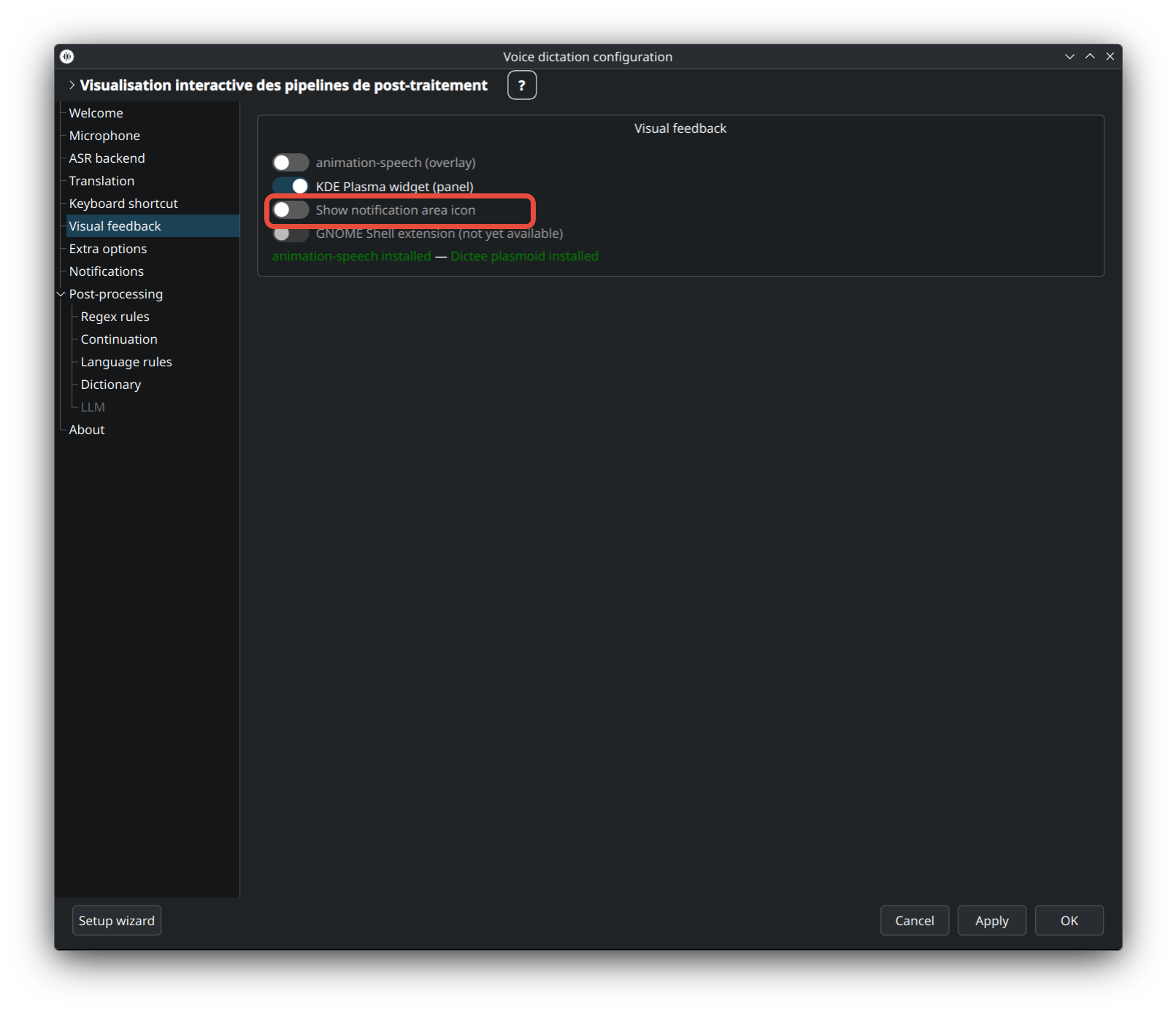
To disable the tray, do the reverse in the same tab (or click Quit icon in the tray menu for a one-off close — it'll come back at the next login).
If you prefer to manage the service yourself:
# Start now + autostart on login
systemctl --user enable --now dictee-tray

# Stop + remove autostart
systemctl --user disable --now dictee-tray

# One-off launch, no autostart
dictee-tray &
The tray waits for the graphical session to be ready before showing up, so there's no race with your panel or shell.
| Click | Action |
|---|---|
| Left click | Start or stop a dictation (or use the menu) |
| Ctrl + left click | Start a dictation with translation |
| Middle click or ESC | Cancel the current recording / transcription |
| Right click | Open the menu (see below) |
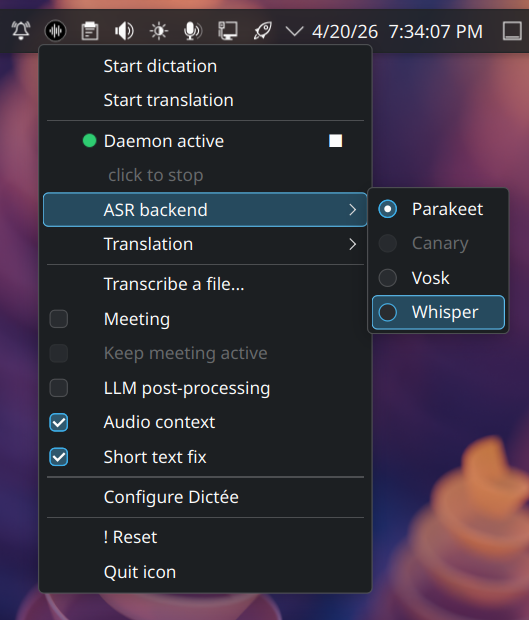
The menu is structured top-to-bottom:
Actions
- Start dictation
- Start translation
- Cancel — aborts whatever is running
Daemon status — a row with a colored dot + short status text (see status icons)
Backends
- ASR backend ▸ Parakeet · Canary · Vosk · Whisper (only installed backends are enabled)
- Translation ▸ Google · Bing · LibreTranslate · Ollama (disabled when ASR = Canary, which translates natively)
Actions on files & meetings
- Transcribe a file… — opens the transcription window (see Transcribe-Files)
- Meeting — tick it to enable diarization on the next recording
- Keep meeting active — stays on for multiple back-to-back recordings (only available while Meeting is ticked)
Toggles (same three switches as in the plasmoid popup)
-
LLM post-processing — adds a post-processing pass using the LLM configured in
dictee-setup - Audio context — tries to respect the context of the previous sentences, helps avoid homophones
- Short text fix — keeps lowercase for phrases shorter than 3 words (handy for corrections)
Footer
-
Configure Dictée — launches
dictee-setup - Toggle voice commands cheatsheet — opens / closes the floating cheatsheet (always-on-top window listing every voice command in your source language)
- ! Reset — stops all processes and restarts the daemon
- Quit icon — closes the tray (dictation still works via shortcuts)
The icon changes shape and color to reflect what the daemon is doing:
| State | Icon | Meaning |
|---|---|---|
| Ready |  |
Daemon ready, waiting for a dictation |
| Recording |  |
Capturing audio |
| Transcribing |  |
Processing the recording |
| Meeting |  |
Meeting mode active (diarization) |
| Inactive | 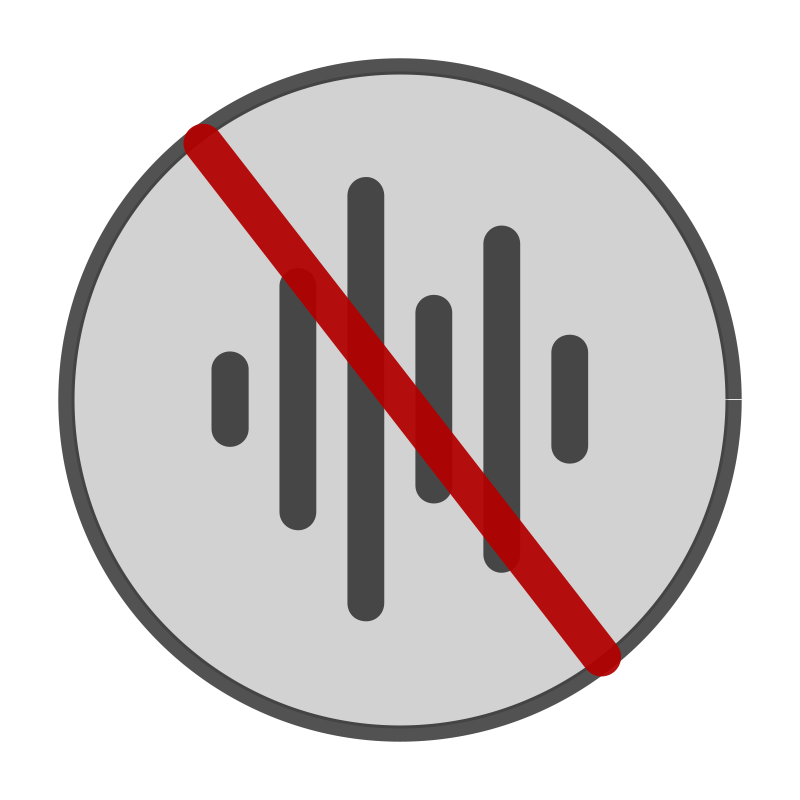 |
Daemon stopped |
| Offline |  |
Daemon unavailable |
Ready and Inactive each ship a light and a dark variant; the tray picks the right one based on your desktop theme.
- No icon on GNOME — install the AppIndicator extension and log out/in.
- No icon on Sway / Hyprland / i3 — add a tray module to Waybar (or any SNI-capable bar); otherwise rely on Keyboard-Shortcuts.
-
Icon doesn't appear at all — check that
xdg-desktop-portalis installed (and the backend matching your desktop:-kde,-gnome,-wlr). - Icon stays red ("Offline") — click ! Reset in the menu. If that doesn't help, see Troubleshooting.
- Plasmoid-Widget — KDE-native alternative with animations and a richer popup
- Keyboard-Shortcuts — works with or without the tray